What's On Bali is currently in its soft launch phase. If you notice any inaccurate information, or would like to explore a partnership with us, please get in touch.What's On Bali is currently in its soft launch phase. If you notice any inaccurate information, or would like to explore a partnership with us, please get in touch.
Siapkan ini dulu dan 5 langkah singkatHave this ready and the 5 steps at a glance
Siapkan ini duluHave this ready
1
Logo bisnis: persegi (1:1), idealnya 800 x 800 px, PNG dengan latar transparan.
Business logo: square (1:1), ideally 800 x 800 px, PNG with a transparent background.
2
Foto bisnis dan produk: minimal 4 foto agar profil Anda tercatat lengkap di dashboard. Formulir perjanjian meminta 10 sampai 30 foto (JPG atau PNG, maksimal 10 MB per foto).
Photos of your business and products: at least 4 so your dashboard profile counts as complete. The agreement form asks for 10 to 30 photos (JPG or PNG, max 10 MB each).
3
Hari dan jam buka, deskripsi singkat, alamat, dan link Google Maps.
Opening days and hours, a short description, your address and your Google Maps link.
4
Paket dan harga: harga normal, harga WOB, dan apa saja yang termasuk.
Packages and prices: normal price, WOB price and what is included.
5
KTP orang yang bertanggung jawab (NIK 16 digit ATAU foto KTP) dan rekening bank atas nama bisnis untuk pembayaran. Keduanya diisi di perjanjian online.
The KTP of the person in charge (16-digit NIK OR a KTP photo) and a bank account in the business name for payouts. Both are entered in the online agreement.
Mengisi formulir pendaftaranFilling in the application form
1
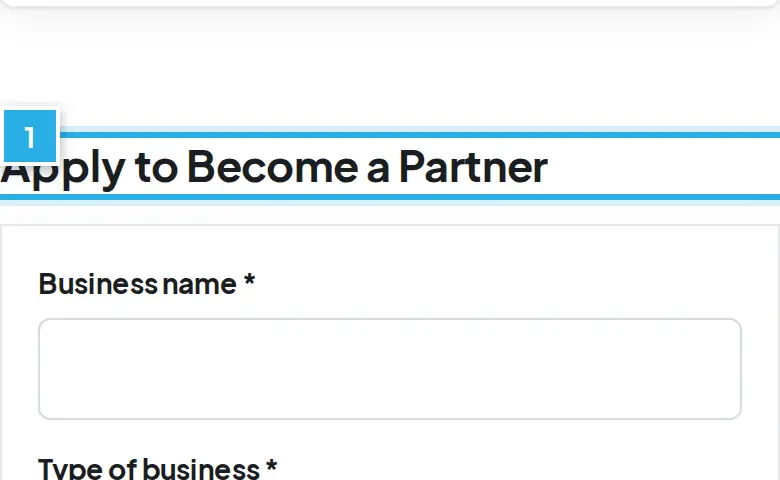
Buka halaman Partner with What's On Bali lewat link List your business di bagian bawah situs (kolom For partners).
Open the Partner with What's On Bali page through the List your business link at the bottom of the site (For partners column).
2
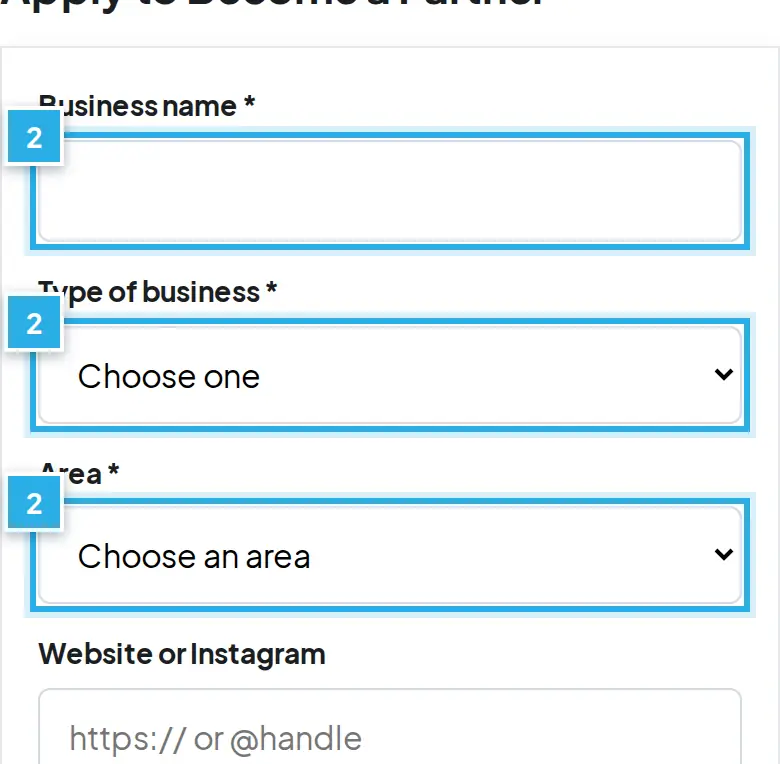
Isi Business name, Type of business dan Area (semuanya wajib). Website or Instagram boleh dikosongkan.
Fill in Business name, Type of business and Area (all required). Website or Instagram is optional.
3
Untuk Transport, Clinics & Pharmacies dan Money Changers, kotak More details terbuka otomatis dan NIB / Business licence number wajib diisi. Untuk jenis lain boleh dikosongkan. Anda juga bisa mengunggah berkas izin (PDF, JPG atau PNG, opsional). Berkas ini privat: hanya tim kami yang bisa melihatnya.
For Transport, Clinics & Pharmacies and Money Changers, the More details box opens by itself and NIB / Business licence number is required. For other types it is optional. You can also upload your licence file (PDF, JPG or PNG, optional). The file is private: only our team can see it.
4
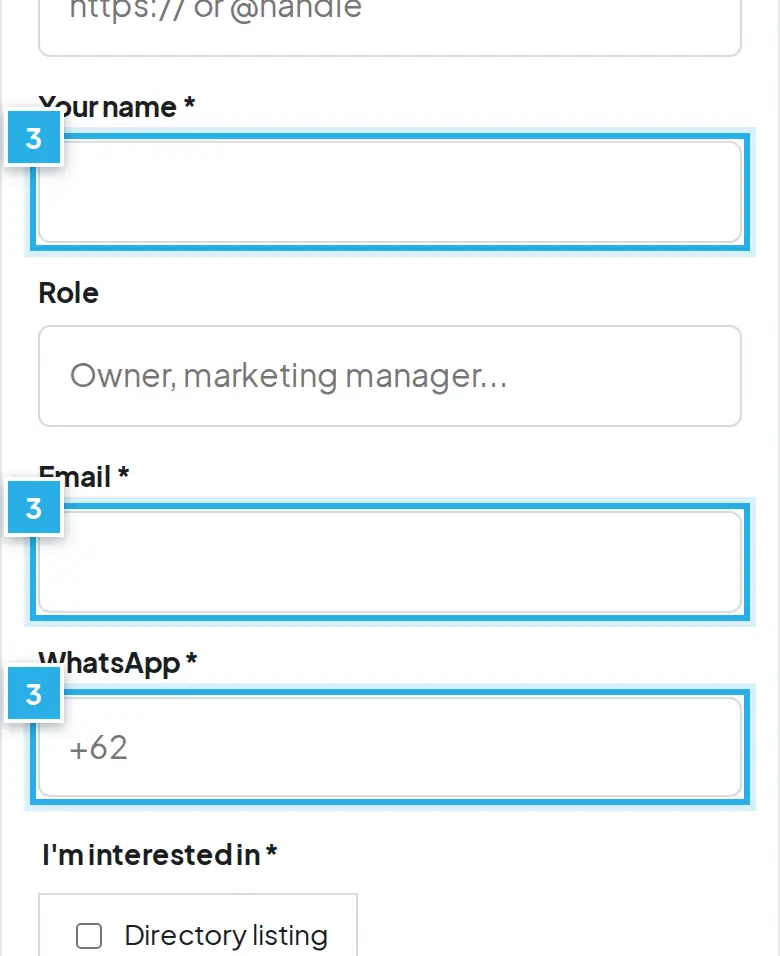
Isi Your name, Email dan WhatsApp (wajib, dengan kode negara, contoh +62 812 0000 0000). Role boleh dikosongkan.
Fill in Your name, Email and WhatsApp (required, with the country code, e.g. +62 812 0000 0000). Role is optional.
5
Di I'm interested in, centang minimal satu: Directory listing, Activity and treatment bookings, Event ticketing, Hot deals & vouchers atau Advertising.
Under I'm interested in, tick at least one: Directory listing, Activity and treatment bookings, Event ticketing, Hot deals & vouchers or Advertising.
6
Centang kotak persetujuan, lalu tekan Send application.
Tick the consent box, then press Send application.
7
Email, nomor WhatsApp, atau nama bisnis yang sudah terdaftar akan ditolak dengan pesan yang jelas. Gunakan data yang belum pernah dipakai di What's On Bali.
An email, WhatsApp number or business name that is already registered is rejected with a clear message. Use details that are not yet on What's On Bali.
Setelah dikirim, muncul pop-up Thank You for Applying dan konfirmasi dikirim ke email Anda. Tim kemitraan kami biasanya membalas dalam dua hari kerja. Mitra yang disetujui menerima perjanjian kemitraan untuk ditandatangani sebelum tayang. Jika pendaftaran belum bisa disetujui, Anda menerima email dengan alasannya dan boleh mendaftar lagi kapan saja.
After sending, a Thank You for Applying pop-up appears and a confirmation is emailed to you. Our partnerships team usually replies within two working days. Approved partners receive the partnership agreement to sign before going live. If the application cannot be approved, you get an email with the reason and you may apply again at any time.
Setelah disetujuiAfter approval
1
Tim kami menyetujui pendaftaran Anda. Anda menerima SATU email selamat datang berisi dua tombol: Lengkapi perjanjian saya dan Buat kata sandi.
Our team approves your application. You receive ONE welcome email with two buttons: Complete my agreement and Set my password.
2
Tekan Buat kata sandi dulu (tautannya hanya berlaku sekali), lalu buka perjanjian.
Press Set my password first (the link works once), then open the agreement.
Buka perjanjian lewat link pribadi di email. Link berlaku 14 hari. Jika kedaluwarsa, minta link baru di halaman Get your private agreement link dengan email yang sama. Jawaban Anda disimpan 30 hari setelah link berakhir.
Open the agreement from the private link in your email. The link works for 14 days. If it expires, request a new one on the Get your private agreement link page with the same email. Your answers are kept for 30 days after expiry.
2
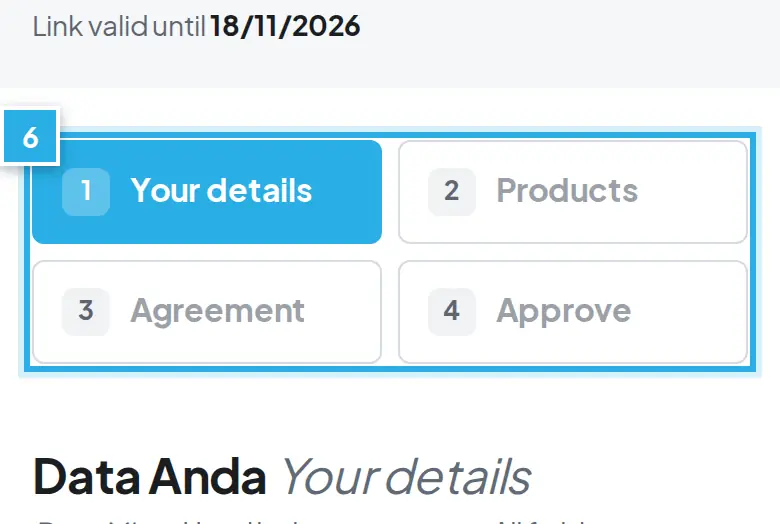
Langkah 1, Your details / Data Anda: semua kolom wajib. Nama usaha, jenis usaha, alamat (pilih Kabupaten, Kecamatan, Desa, lalu Jalan dan nomor), nama dan jabatan yang menandatangani, email dan WhatsApp pemesanan.
Step 1, Your details: all fields are required. Business name, business type, address (pick Kabupaten, Kecamatan, Desa, then Street and number), name and position of the signer, booking email and WhatsApp.
3
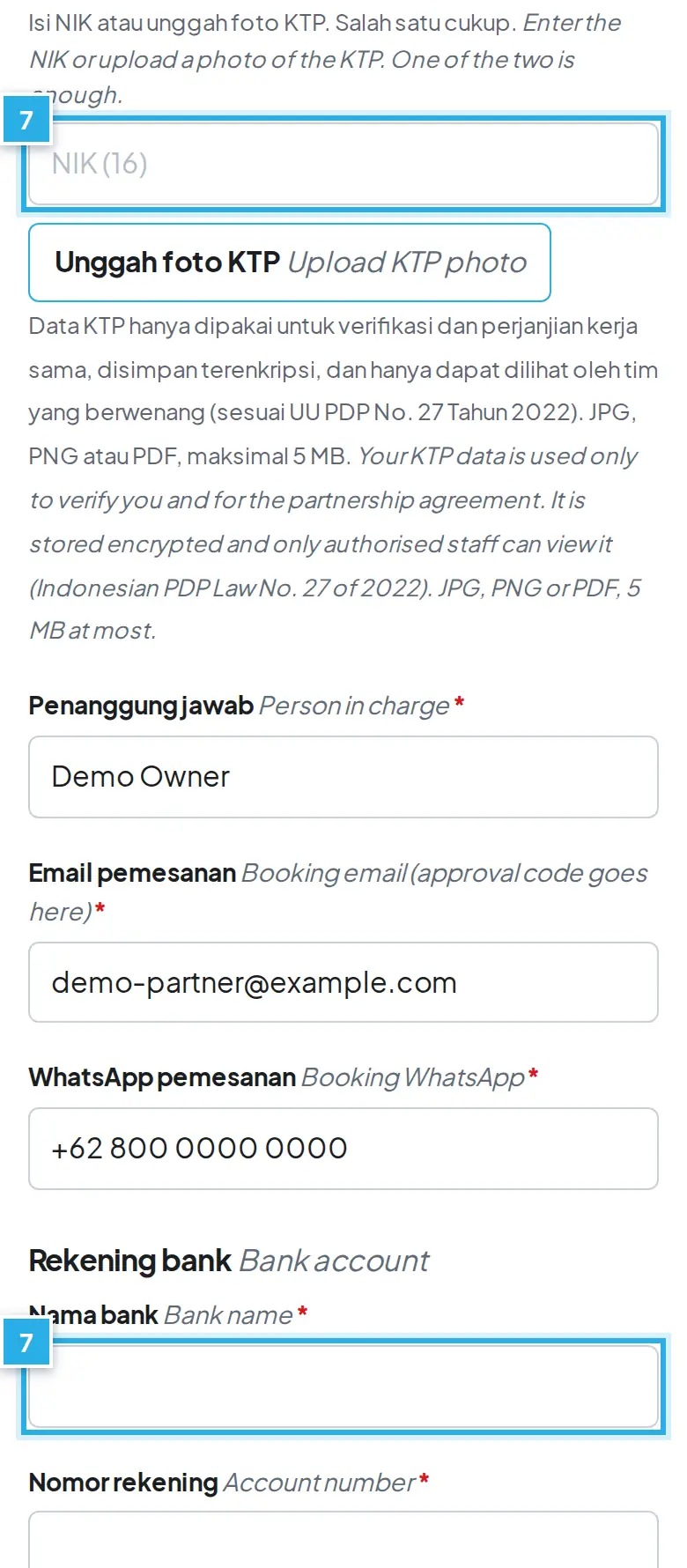
KTP penanggung jawab: isi NIK (tepat 16 digit) ATAU unggah foto KTP (JPG, PNG atau PDF, maksimal 5 MB). Salah satu cukup. Data KTP disimpan terenkripsi dan hanya staf resmi yang bisa melihatnya.
KTP of the person in charge: enter the NIK (exactly 16 digits) OR upload a KTP photo (JPG, PNG or PDF, max 5 MB). One of the two is enough. KTP data is stored encrypted and only authorised staff can view it.
4
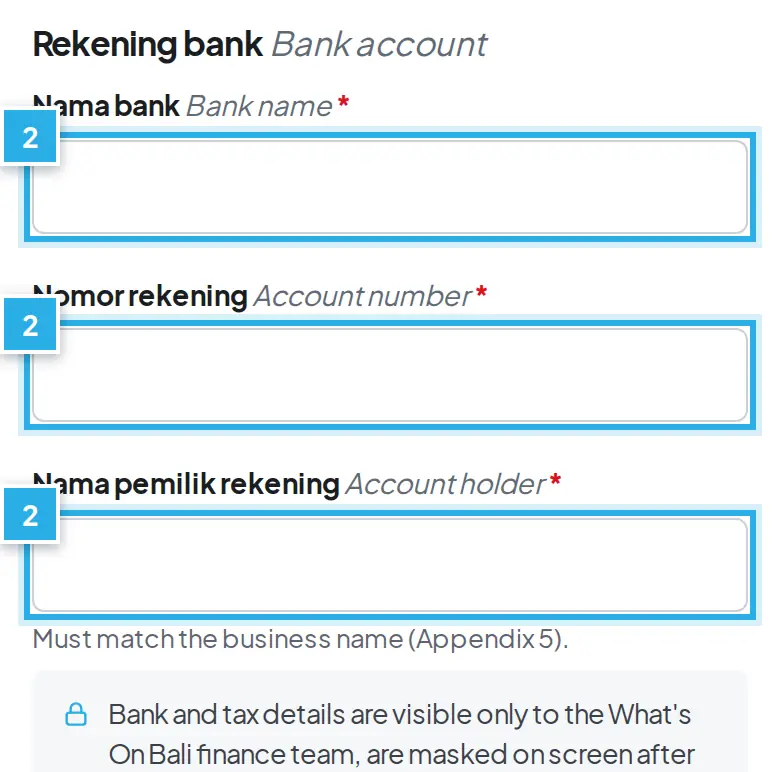
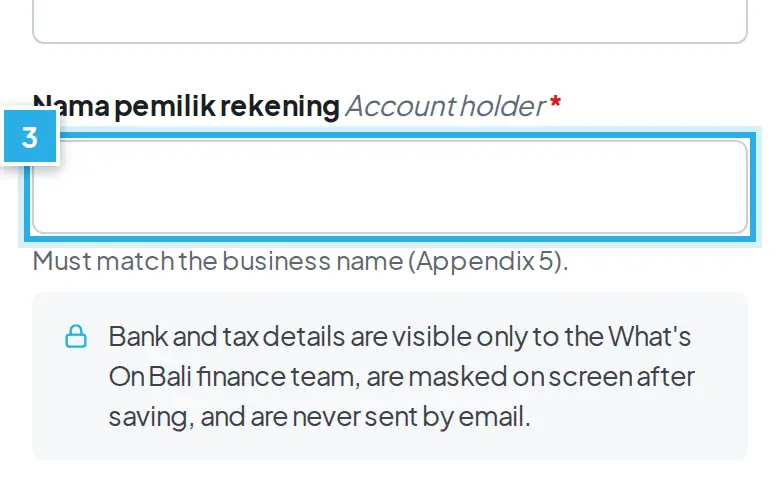
Rekening bank:Bank name, Account number dan Account holder. Nama pemilik harus sesuai nama bisnis. Data bank hanya terlihat oleh tim keuangan dan tidak pernah dikirim lewat email.
Bank account:Bank name, Account number and Account holder. The holder name must match the business name. Bank details are visible only to the finance team and never sent by email.
5
Langkah 2, Products / Produk: pilih layanan (Directory listing, Activity and treatment bookings, Hot Deals and vouchers, Event tickets, Advertising). Pilih model kerja sama: Komisi (Anda menawarkan persen komisi, bagian Anda adalah harga WOB dikurangi komisi) atau Harga nett (Anda mengisi harga nett per produk).
Step 2, Products: choose your services (Directory listing, Activity and treatment bookings, Hot Deals and vouchers, Event tickets, Advertising). Choose how you work with us: Commission (you offer a commission %, your share is the WOB price minus that commission) or Net rate (you enter the net rate for each product).
6
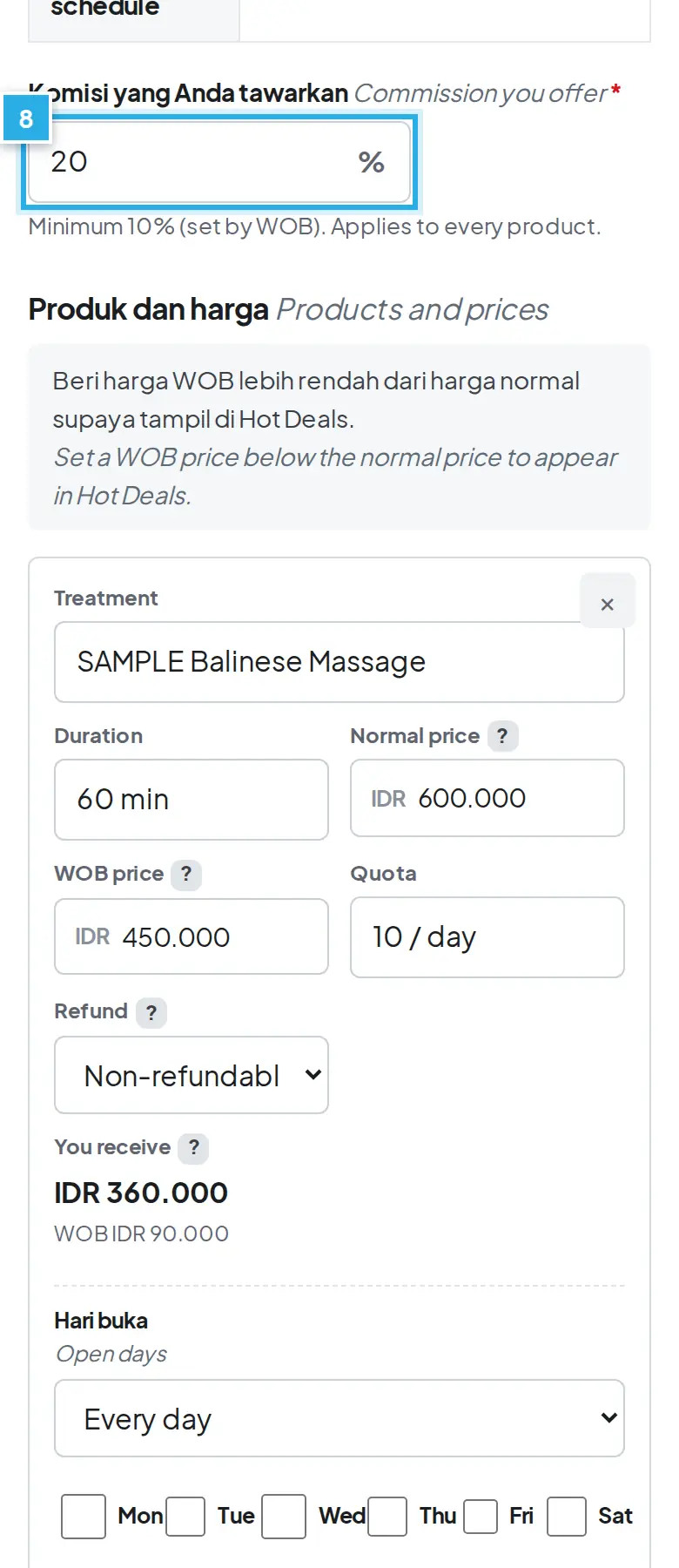
Isi Komisi yang Anda tawarkan / Commission you offer (komisi minimal 10%; perjanjian Anda bisa punya minimum lebih tinggi dari WOB). Untuk model harga nett, setiap paket perlu selisih minimal 10% antara harga WOB dan harga nett; kalau kurang muncul pesan merah "Harga net terlalu tinggi". Produk baru bisa diisi setelah komisi terisi.
Fill in Commission you offer (minimum commission 10%; your agreement can have a higher minimum set by WOB). With net rates, every package needs at least 10% between the WOB price and the net rate; otherwise a red "Net price too high" message shows. Products can be added once the commission is filled in.
7
Tambah produk dengan + Add product (maksimal 60). Isi nama, Normal price dan WOB price. Kolom You receive (Anda terima) dihitung otomatis: harga WOB dikurangi komisi. Minimal satu produk dengan nama dan harga WOB lebih dari 0.
Add products with + Add product (maximum 60). Fill in the name, Normal price and WOB price. The You receive column is calculated for you: WOB price minus commission. At least one product with a name and a WOB price above 0 is needed.
8
Untuk tiap produk pilih Refund (Non-refundable, Free cancel 24 h, 48 h, 7 days atau 1 free date change), hari buka (Every day, Weekdays (Mon-Fri), Weekend (Sat-Sun) atau Specific days), jam operasional (format 18.00-21.00), dan masa berlaku voucher dalam hari (7 sampai 365, standar 7). Foto paket boleh diisi.
For each product choose Refund (Non-refundable, Free cancel 24 h, 48 h, 7 days or 1 free date change), open days (Every day, Weekdays (Mon-Fri), Weekend (Sat-Sun) or Specific days), operating hours (format 18.00-21.00) and voucher validity in days (7 to 365, default 7). A package photo is optional.
9
Unggah logo (wajib; PNG, JPG, WebP, SVG, AI, EPS atau PDF, maksimal 5 MB), foto (10 sampai 30, maksimal 10 MB per foto), centang izin publikasi (wajib), dan isi jam buka serta deskripsi bisnis. Link Google Drive atau WeTransfer, link video, Google Maps dan Instagram boleh diisi.
Upload your logo (required; PNG, JPG, WebP, SVG, AI, EPS or PDF, max 5 MB), photos (10 to 30, max 10 MB each), tick the permission to publish (required), and fill in opening hours and a business description. A Google Drive or WeTransfer link, video link, Google Maps and Instagram are optional.
10
Langkah 3, Perjanjian: baca pasal-pasalnya. Halaman perjanjian tampil dalam satu bahasa; ganti dengan tombol ID | EN di kanan atas (berlaku untuk seluruh halaman dan diingat untuk tautan Anda). Jika ada perbedaan, versi Bahasa Indonesia yang berlaku. Salinan PDF resmi tetap berisi dua bahasa.
Step 3, Agreement: read the articles. The agreement page shows one language at a time; switch it with the ID | EN button at the top right (it applies to the whole page and is remembered for your link). If the versions differ, the Indonesian version prevails. The official PDF copy still contains both languages.
11
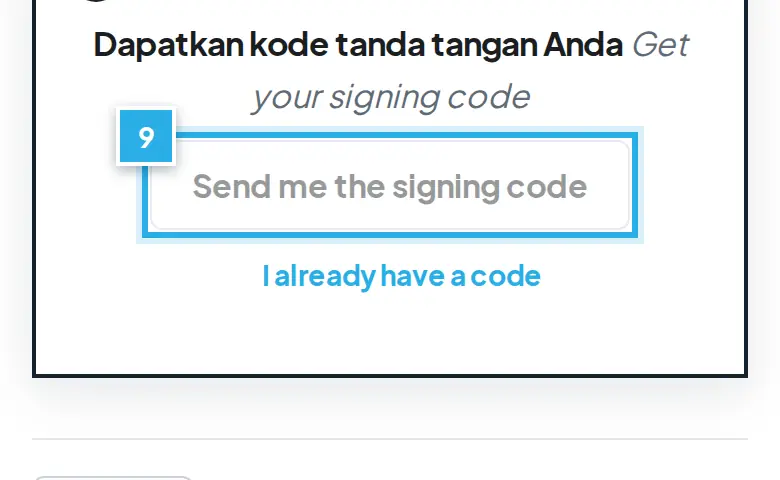
Langkah 4, Approve / Persetujuan: isi nama lengkap dan jabatan, centang persetujuan, tekan Send me the signing code, masukkan kode 6 digit dari email (berlaku 10 menit), lalu tekan Sign and approve the agreement. Jika Anda mengubah data setelah meminta kode, minta kode baru.
Step 4, Approve: enter your full name and position, tick the agreement box, press Send me the signing code, enter the 6-digit code from your email (valid for 10 minutes), then press Sign and approve the agreement. If you change any detail after asking for a code, request a new code.
12
Jawaban Anda tersimpan otomatis. Anda bisa menutup halaman dan melanjutkan nanti dengan link yang sama.
Your answers are saved automatically. You can close the page and continue later with the same link.
13
Status perjanjian tampil di atas halaman link dan di Overview Partner Dashboard: Menunggu Anda, Sedang diisi, N%, Sedang direview tim WOB, Perlu revisi, Aktif atau Link kedaluwarsa. Paket, voucher dan tiket Anda baru bisa dipesan di What's On Bali setelah status Aktif; sebelum itu tombol Book Now tidak tampil.
The agreement status is shown at the top of the link page and on the Partner Dashboard Overview: Waiting for you, In progress, N%, Under WOB review, Changes requested, Active or Link expired. Your packages, vouchers and tickets can be booked on What's On Bali only once the status is Active; until then no Book Now button is shown.
Setelah Anda menyetujui, tim What's On Bali memeriksa komisi dan menandatangani balik. PDF final dikirim ke kedua pihak dan Partner Dashboard aktif. Jika semua data lengkap (area, tipe listing, harga sesuai perjanjian, minimal satu foto), listing langsung tayang dan Anda menerima satu email "Perjanjian aktif dan listing Anda online". Jika ada yang kurang, tim mengembalikan perjanjian dengan catatan (email Mohon tinjau perjanjian Anda) dan Anda menyetujui ulang dengan kode baru.
After you approve, the What's On Bali team reviews the commission and countersigns. The final PDF goes to both parties and your Partner Dashboard is activated. If everything is complete (area, listing type, prices matching the agreement, at least one photo), your listing goes live straight away and you get one email "Agreement active and your listing is online". If something is missing, the team returns the agreement with a note (email Please review your agreement) and you approve again with a new code.
Login PertamaYour First Login
Masuk ke Partner Dashboard dengan kata sandi yang Anda buat.Log in to the Partner Dashboard with the password you created.
1
Tekan Partner login di footer, kolom For partners.Press Partner login in the footer, For partners column.
2
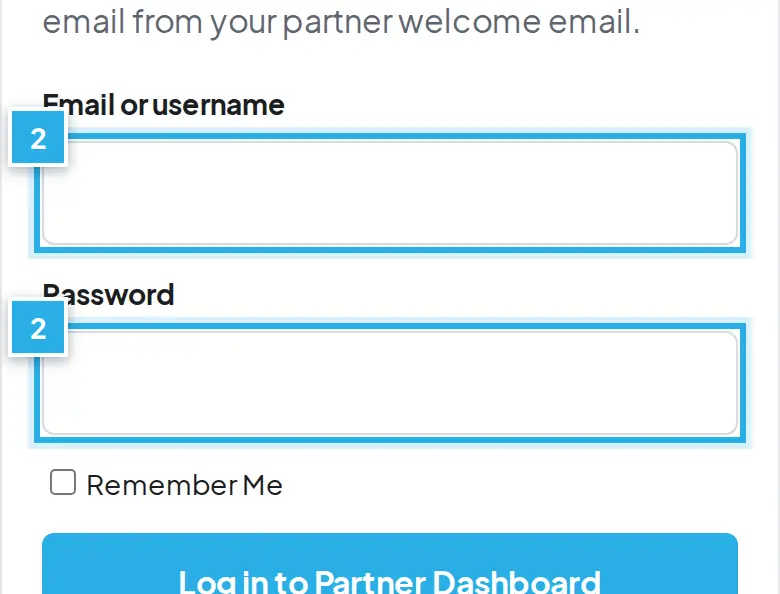
Isi Email or username dan Password.Fill in Email or username and Password.
3
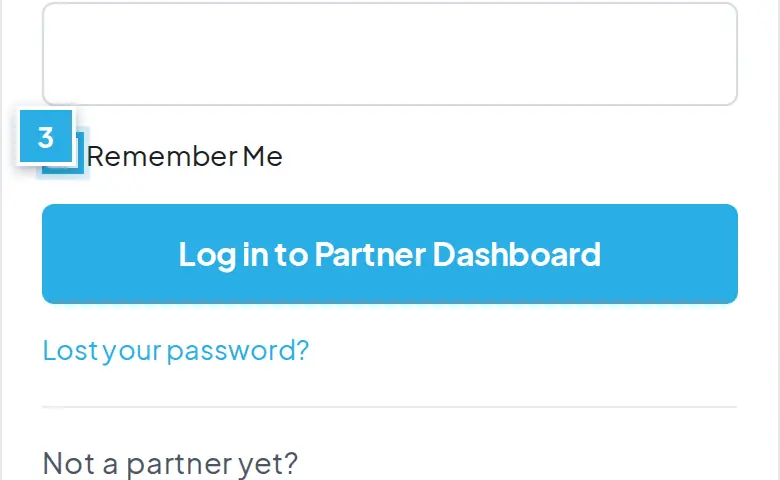
Centang Remember Me agar tetap masuk di HP.Tick Remember Me to stay logged in on your phone.
4
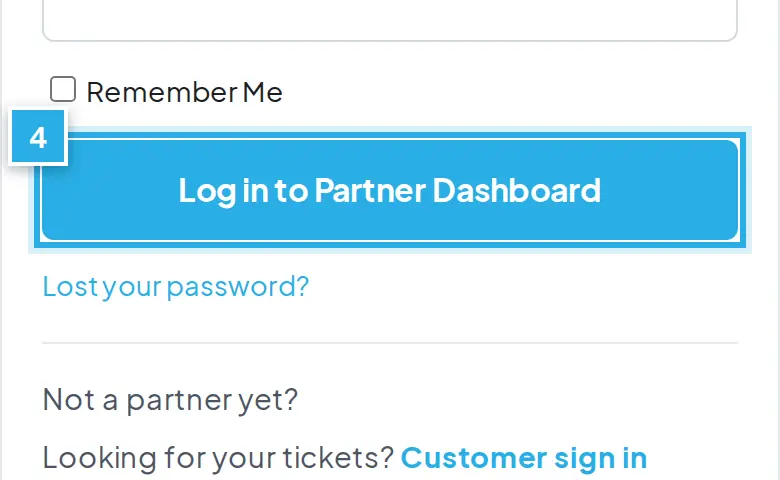
Tekan Log in to Partner Dashboard.Press Log in to Partner Dashboard.
5
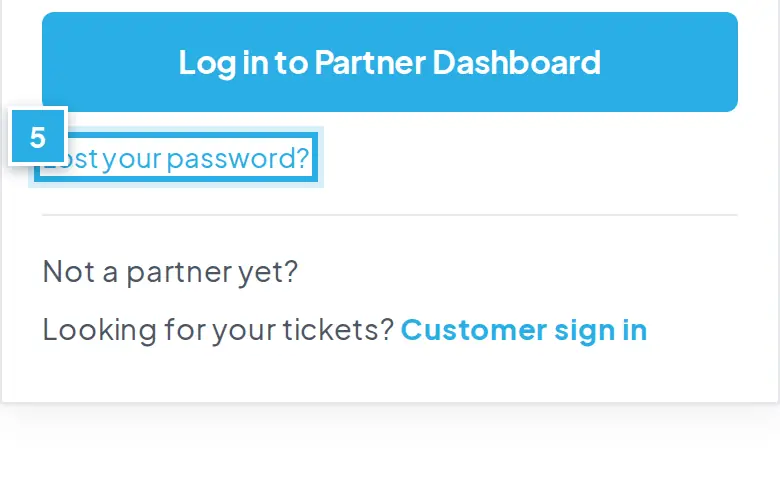
Lupa kata sandi? Tekan Lost your password?.Forgot your password? Press Lost your password?.
6
Tambahkan halaman login ke layar utama dari menu browser.Add the login page to your home screen from your browser menu.
Masuk ke Partner DashboardLogging in to the Partner Dashboard
1
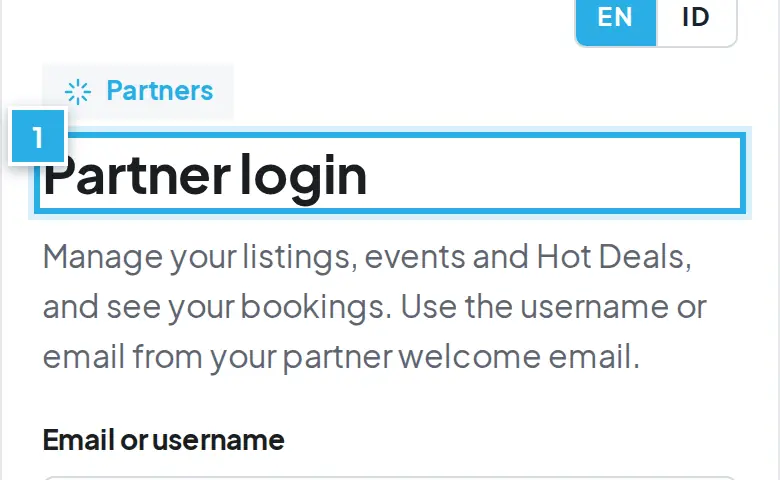
Buka bagian bawah situs dan tekan Partner login di kolom For partners. Link yang sama ada sebagai tombol Partner login di halaman Partner with What's On Bali.
Scroll to the bottom of the site and press Partner login in the For partners column. The same link is the Partner login button on the Partner with What's On Bali page.
2
Isi Email or username dan Password. Centang Remember Me agar tetap masuk di HP Anda.
Fill in Email or username and Password. Tick Remember Me to stay logged in on your phone.
3
Tekan Log in to Partner Dashboard. Anda langsung masuk ke dashboard.
Press Log in to Partner Dashboard. You go straight to the dashboard.
4
Login pertama: gunakan nama pengguna dari email selamat datang, dan kata sandi yang Anda buat lewat tombol Buat kata sandi / Set my password.
First login: use the username from your welcome email and the password you created with the Set my password button.
5
Tips HP: dari menu browser Anda, simpan halaman login atau dashboard sebagai bookmark atau tambahkan ke layar utama supaya mudah dibuka. Ini fitur browser Anda, bukan aplikasi What's On Bali.
Phone tip: from your browser menu, bookmark the login or dashboard page or add it to your home screen so it is easy to open. This is a feature of your browser, not a What's On Bali app.
Lupa kata sandiForgot your password
1
Di halaman login tekan Lost your password?, masukkan email Anda, lalu buka email Buat kata sandi baru untuk Partner Dashboard Anda.
On the login page press Lost your password?, enter your email, then open the email Set a new password for your Partner Dashboard.
2
Tekan Buat kata sandi baru / Set a new password (tautan hanya berlaku sekali) dan pilih kata sandi baru.
Press Set a new password (the link works once) and choose a new password.
3
Sudah masuk? Buka Business Profile, bagian Your login, lalu tekan Send me a reset link.
Already logged in? Open Business Profile, section Your login, then press Send me a reset link.
Lengkapi Profil dan ListingComplete Your Profile and Listing
Isi logo, foto, jam buka dan alamat supaya tamu mudah menemukan Anda.Add your logo, photos, hours and address so guests can find you.
1
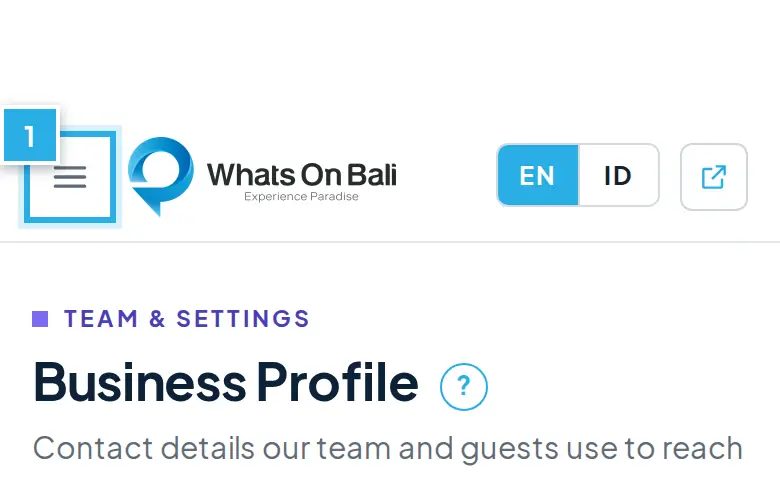
Buka Business Profile di menu.Open Business Profile in the menu.
2
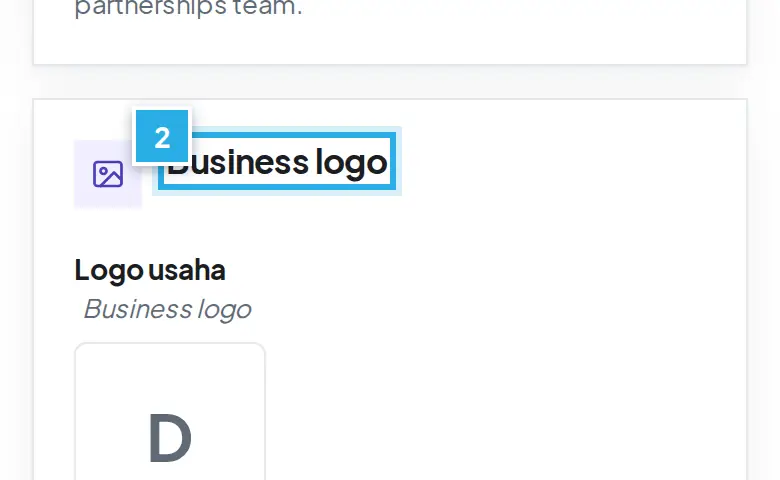
Unggah Business logo persegi, ideal 800 x 800 px.Upload a square Business logo, ideally 800 x 800 px.
3
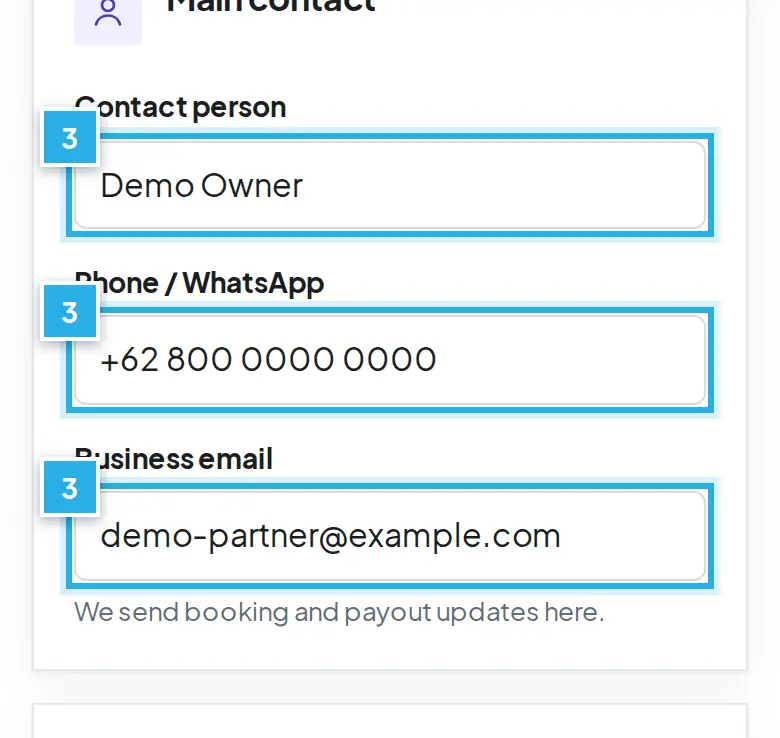
Isi kontak utama, lalu tekan Save profile.Fill in the main contact, then press Save profile.
4
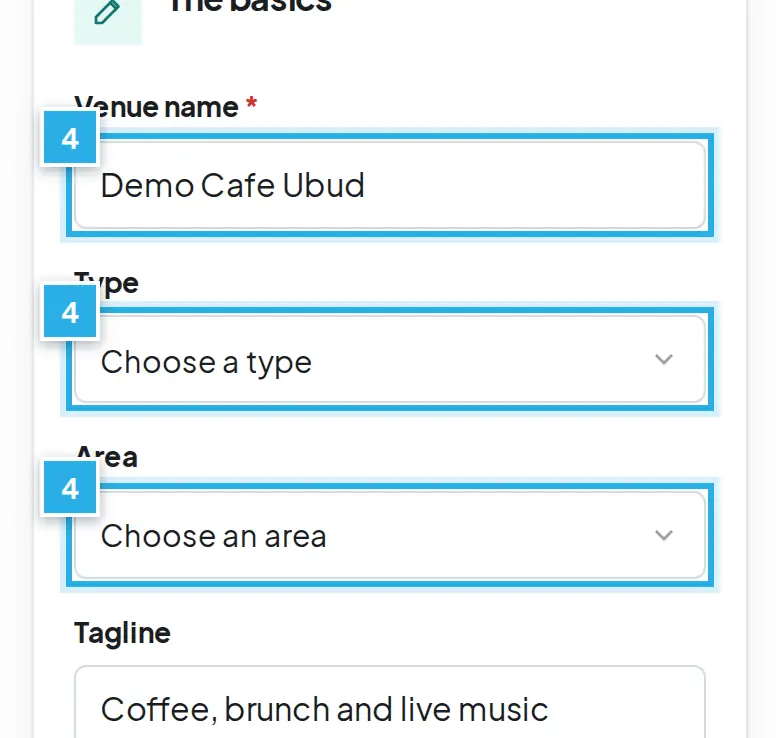
Buka Listings. Isi nama venue, tipe dan area.Open Listings. Fill in venue name, type and area.
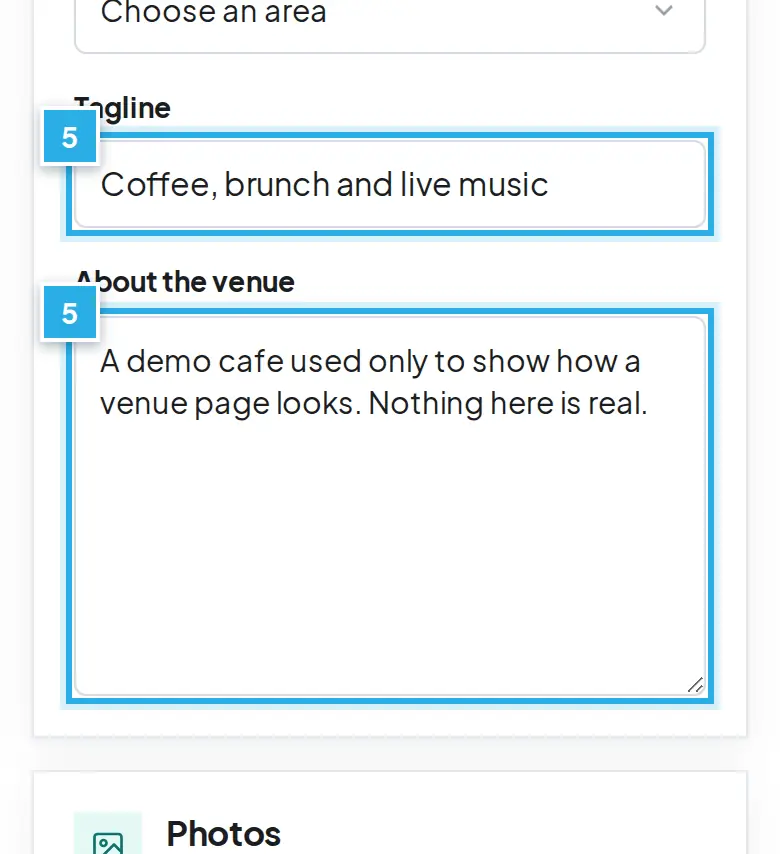
5
Tulis tagline dan deskripsi dalam paragraf pendek.Write the tagline and description in short paragraphs.
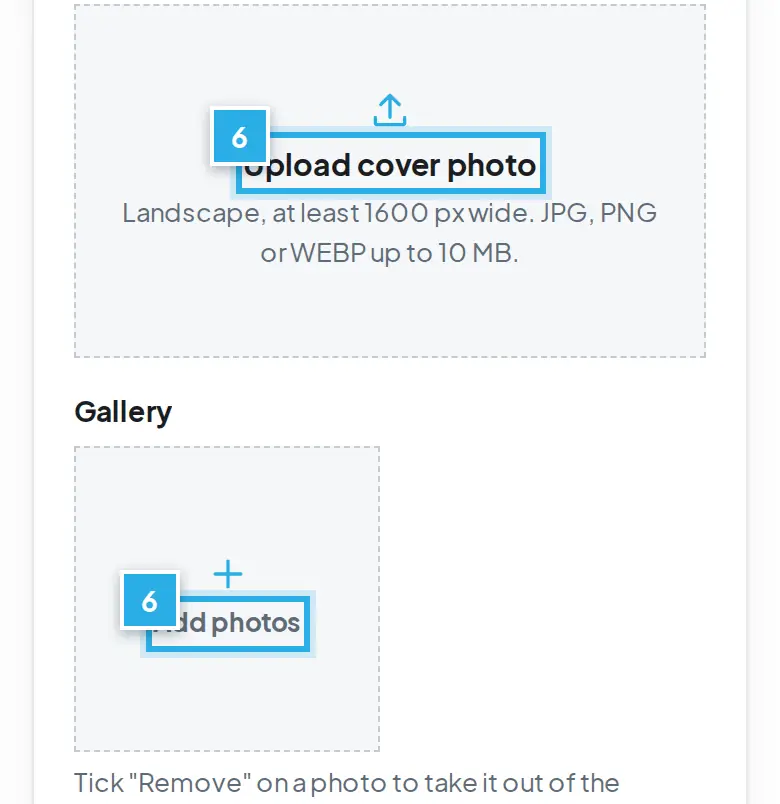
6
Unggah foto cover, lalu tambahkan foto galeri.Upload the cover photo, then add gallery photos.
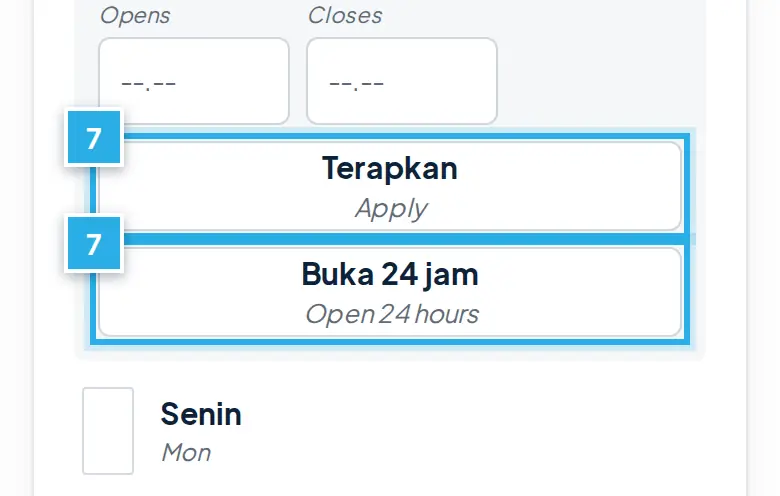
7
Atur jam buka: Terapkan atau Buka 24 jam.Set opening hours: Apply or Open 24 hours.
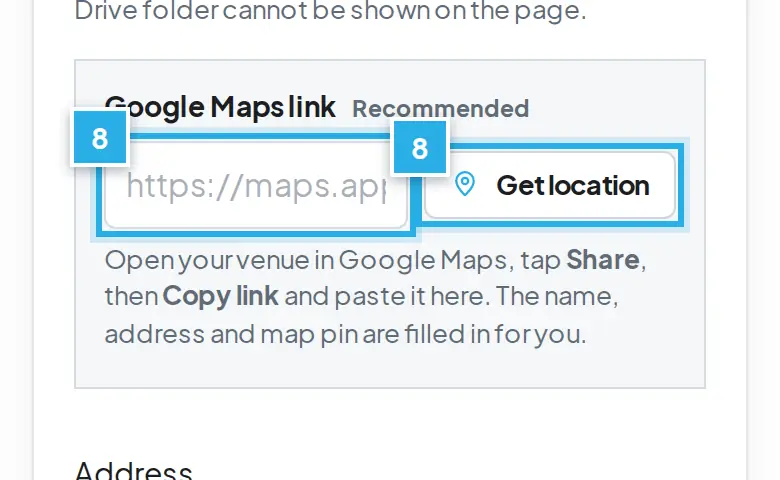
8
Tempel link Google Maps, lalu tekan Get location.Paste your Google Maps link, then press Get location.
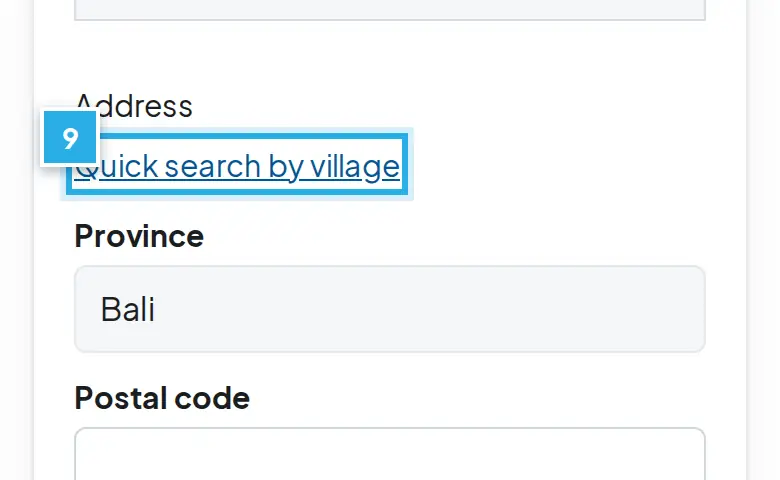
9
Pilih alamat dengan Quick search by village.Pick the address with Quick search by village.
10
Tekan Save changes atau Submit for review.Press Save changes or Submit for review.
Menu Business Profile berisi logo dan kontak bisnis. Detail venue (foto, deskripsi, jam buka, alamat) ada di menu Listings, lihat bagian berikutnya.
The Business Profile menu holds your logo and business contacts. Venue details (photos, description, opening hours, address) are in the Listings menu, see the next section.
Langkah mengisiSteps
1
Buka Business Profile di menu. Business name hanya bisa dibaca. Untuk mengubah nama bisnis, kirim email ke tim kemitraan.
Open Business Profile in the menu. Business name is read-only. To change the business name, email the partnerships team.
2
Di Business logo pilih file (PNG, JPG, WebP, PDF, SVG, AI atau EPS). Ukuran ideal 800 x 800 px (persegi 1:1), PNG latar transparan, minimal 400 x 400 px, maksimal 5 MB. Pakai logo versi persegi atau ikon, bukan yang panjang, dan sisakan sedikit ruang kosong di sekeliling.
Under Business logo choose a file (PNG, JPG, WebP, PDF, SVG, AI or EPS). Ideal size 800 x 800 px (square 1:1), PNG with a transparent background, minimum 400 x 400 px, maximum 5 MB. Use the square or icon version of your logo, not a long horizontal one, and leave a little empty space around it.
3
Logo yang bukan persegi diberi ruang putih agar menjadi persegi. SVG, AI, EPS dan PDF diubah menjadi PNG. Jika gagal, unggah PNG atau JPG.
A logo that is not square gets white space added to make it square. SVG, AI, EPS and PDF are converted to PNG. If that fails, upload a PNG or JPG.
4
Di Main contact isi Contact person, Phone / WhatsApp dan Business email. Kami mengirim pembaruan pemesanan dan pembayaran ke email bisnis. Satu email hanya bisa dipakai satu kali di What's On Bali.
Under Main contact fill in Contact person, Phone / WhatsApp and Business email. We send booking and payout updates to the business email. Each email can only be used once on What's On Bali.
5
Tekan Save profile. Perubahan langsung tersimpan.
Press Save profile. Updates are saved straight away.
Listing adalah halaman venue Anda di situs. Buka Listings, lalu Add a listing atau tekan Edit pada listing yang ada. Tanda * berarti wajib.
The listing is your venue page on the site. Open Listings, then Add a listing or press Edit on an existing listing. A * means required.
Dasar dan deskripsiThe basics and description
1
The basics:Venue name* (maksimal 120 karakter), Type, Area, Tagline (maksimal 90 karakter) dan About the venue.
The basics:Venue name* (max 120 characters), Type, Area, Tagline (max 90 characters) and About the venue.
2
Tips deskripsi: tulis hal yang ingin dibaca tamu, yaitu suasana, menu atau layanan unggulan, harga kisaran, dan untuk siapa. Tulis paragraf pendek. Panel Ready to go live? meminta minimal 80 karakter.
Description tips: write what guests want to read: the atmosphere, signature menu or services, price range and who it suits. Use short paragraphs. The Ready to go live? panel asks for at least 80 characters.
Upload cover photo (or Replace cover photo): the main photo of the listing. Landscape, at least 1600 px wide, JPG, PNG or WEBP, up to 10 MB.
2
Gallery: tekan Add photos dan pilih beberapa foto sekaligus. Tambahkan 4 foto galeri atau lebih. Untuk menghapus, centang Remove pada foto lalu simpan.
Gallery: press Add photos and choose several photos at once. Add 4 or more gallery photos. To take one out, tick Remove on the photo and save.
3
Foto galeri tampil sesuai urutan unggah. Untuk acara dan Hot Deal hanya ada satu foto cover.
Gallery photos show in upload order. Events and Hot Deals have one cover photo only.
Jam bukaOpening hours
1
Di Opening hours centang hari yang buka. Hari yang tidak dicentang tampil sebagai Tutup / Closed.
Under Opening hours tick the days you are open. Days left unticked show as Closed.
2
Pilih Jam buka / Opens dan Jam tutup / Closes (pilihan tiap 30 menit).
Choose Opens and Closes (every 30 minutes).
3
Jam sama setiap hari: pilih jam di bagian atas, tekan Terapkan / Apply (berlaku untuk hari yang dicentang, atau semua hari jika belum ada). Atau tekan Buka 24 jam / Open 24 hours.
Same hours every day: choose the times at the top, press Apply (it applies to the ticked days, or to all days if none are ticked). Or press Open 24 hours.
4
Jam terpisah (misalnya istirahat siang): tekan + Tambah jam / + Add hours (maksimal 3 jam per hari). Hapus / Remove menghapus satu jam.
Split hours (for example a lunch break): press + Add hours (up to 3 ranges per day). Remove deletes one range.
5
Buka sampai lewat tengah malam: pilih jam tutup lebih kecil dari jam buka. Muncul keterangan Tutup lewat tengah malam: hari berikutnya.
Open past midnight: choose a closing time earlier than the opening time. The line Closes after midnight: next day appears.
6
Hours note (opsional) untuk catatan seperti "last entry 17.00" atau jam khusus hari raya.
Hours note (optional) for notes such as "last entry 17.00" or special holiday hours.
Harga dan kontakPrices and contact
1
Price range (opsional), contoh "IDR 150.000-400.000 per person".
Price range (optional), for example "IDR 150.000-400.000 per person".
2
Price from (IDR): harga mulai yang nyata. Isi juga Price basis (per person, set menu, per night, per treatment), Price checked on dan Price source (Official website, Menu atau Partner). Harga tampil di kartu hanya jika dicek dalam 6 bulan terakhir. Jika Anda mengubah harga tanpa mengisi tanggal, tanggal cek otomatis menjadi hari ini.
Price from (IDR): a real starting price. Also fill in Price basis (per person, set menu, per night, per treatment), Price checked on and Price source (Official website, Menu or Partner). The price shows on the card only if it was checked within the last 6 months. If you change the price without a date, the check date is set to today.
3
Contact & location:Phone, WhatsApp, Website (mulai dengan https://), Instagram (contoh @namavenue) dan Video link (YouTube, Vimeo atau file video; folder Google Drive tidak bisa ditampilkan).
Contact & location:Phone, WhatsApp, Website (starting with https://), Instagram (e.g. @yourvenue) and Video link (YouTube, Vimeo or a video file; a Google Drive folder cannot be shown).
4
Getting there (opsional): parkir, titik antar, petunjuk arah. Good to know (opsional): Good for, Reservations, Dress code, Age limit, Languages, Why guests love it dan Facilities (satu per baris).
Getting there (optional): parking, drop-off point, directions. Good to know (optional): Good for, Reservations, Dress code, Age limit, Languages, Why guests love it and Facilities (one per line).
Alamat dan Google MapsAddress and Google Maps
1
Di HP, buka aplikasi Google Maps dan buka venue Anda sendiri (bukan daftar hasil pencarian). Tekan Share, lalu Copy link.
On your phone, open the Google Maps app and open your own venue (not a search list). Tap Share, then Copy link.
2
Kembali ke dashboard dan tempel di kolom Google Maps link. Tekan Get location jika tidak otomatis. Nama, alamat dan titik peta terisi sendiri, lalu muncul Map pin saved.
Back in the dashboard, paste it into the Google Maps link field. Press Get location if it does not run by itself. The name, address and map pin fill in for you and Map pin saved appears.
3
Jika muncul pesan tidak bisa membaca lokasi, buka venue itu sendiri di Google Maps, tekan Share dan salin link lagi.
If a message says the location could not be read, open the venue itself in Google Maps, tap Share and copy the link again.
4
Alamat terstruktur (listing): pilih Kabupaten/Kota, Kecamatan, Desa/Kelurahan, isi Jalan dan nomor dan Banjar / Dusun. Kode pos terisi otomatis dan bisa diubah. Anda juga bisa memakai Cari cepat nama desa atau mengetik kode pos 5 digit.
Structured address (listing): choose Regency / City, Subdistrict (Kecamatan), Village, fill in Street and number and Hamlet (Banjar). The postal code fills in automatically and can be changed. You can also use Quick search by village or type the 5-digit postal code.
Menyimpan dan peninjauanSaving and review
1
Listing atau item baru: tekan Submit for review (kirim ke tim) atau Save as draft (simpan dulu). Konfirmasi muncul sebelum dikirim.
A new listing or item: press Submit for review (send to the team) or Save as draft (keep working). A confirmation appears before sending.
2
Tim kami memeriksa item baru dalam satu hari kerja dan mengirim email saat tayang. Status: Draft, In review, Live, Changes requested, Scheduled, Hidden, Ended atau Expired.
Our team checks new items within one working day and emails you when it is live. Statuses: Draft, In review, Live, Changes requested, Scheduled, Hidden, Ended or Expired.
3
Jika tim meminta perubahan, status menjadi Changes requested dengan catatan. Perbaiki lalu tekan Submit for review lagi.
If the team asks for changes, the status becomes Changes requested with a note. Fix it and press Submit for review again.
4
Item yang sudah Live: tekan Save changes. Perubahan langsung tampil di situs dan tim diberi tahu. Tidak ada peninjauan ulang.
An item that is already Live: press Save changes. Changes show on the site straight away and the team is notified. There is no second review.
5
Di sisi layar ada Card preview dan panel Ready to go live? (nilai N/6) sebagai pengingat. Panel ini hanya saran.
On the side of the screen are the Card preview and the Ready to go live? panel (score N/6) as a reminder. The panel is advice only.
Tambah Paket dan TreatmentAdd Packages and Treatments
Buat paket yang bisa dibeli tamu, lengkap dengan harga dan isinya.Create packages guests can buy, with their price and what is included.
1
Buka Treatments, pilih tempat Anda, tekan Manage.Open Treatments, pick your place, press Manage.
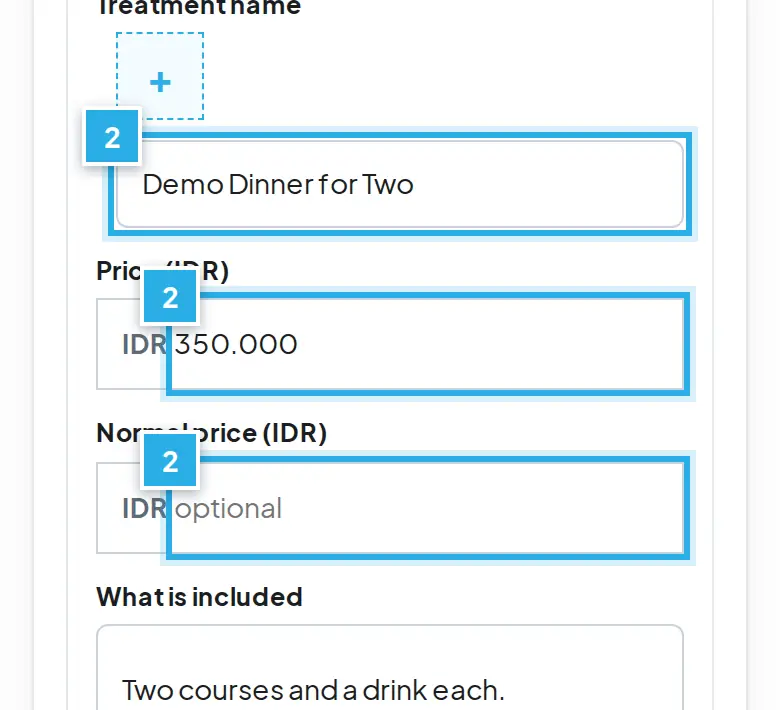
2
Isi nama paket dan Harga normal.Fill in the package name and the Normal price.
3
Tulis isi paket, satu poin per baris.Write what is included, one point per line.
4
Pilih hari buka, jam dan masa berlaku voucher.Choose open days, hours and voucher validity.
5
Matikan Visible untuk menjeda paket.Switch off Visible to pause a package.
6
Atur kuota harian, batas pesan dan tanggal tutup.Set the daily quota, booking limits and blocked dates.
7
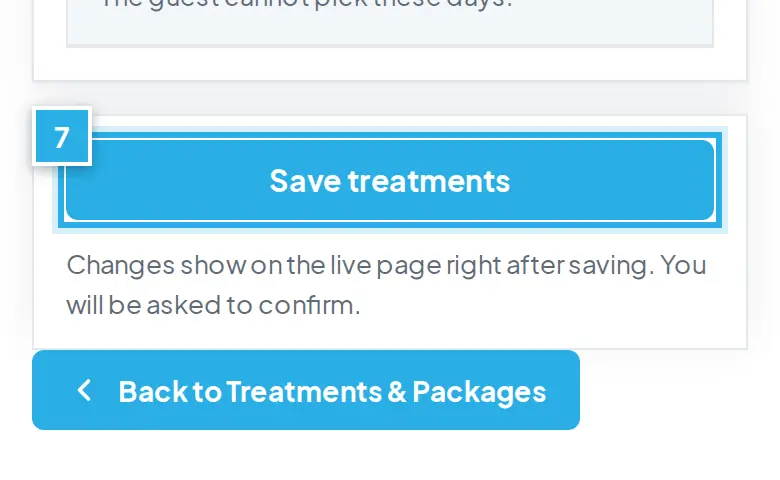
Tekan Save treatments dan konfirmasi.Press Save treatments and confirm.
8
Hot Deal: diskon diatur oleh tim What's On Bali.Hot Deal: discounts are set by the What's On Bali team.
Paket (treatment) adalah pilihan yang dibeli tamu, misalnya "Balinese Massage, 60 minutes". Setiap paket punya harga dan daftar isinya sendiri. Tamu memilih paket dan tanggal kunjungan, membayar, lalu menerima e-voucher.
A package (treatment) is what guests buy, for example "Balinese Massage, 60 minutes". Each one has its own price and list of what is included. The guest picks a package and a visit date, pays, and gets an e-voucher.
Menambah paketAdding a package
1
Buka Treatments di menu. Pilih listing Anda, lalu tekan Manage. Semua produk dan paket Anda ada di satu tempat: listing Anda.
Open Treatments in the menu. Pick your listing, then press Manage. All your products and packages live in one place: your listing.
2
Hot Deal diatur oleh tim What's On Bali. Jika tim menjalankan Hot Deal pada paket Anda, di atas daftar paket tampil kotak HOT DEAL WOB dan di bawah harga tertulis: "Produk ini sedang tampil sebagai Hot Deal What's On Bali. Tamu membayar IDR ... Pencairan dana untuk Anda tetap IDR ... per voucher." Diskon diambil dari margin What's On Bali, jadi pencairan dana Anda tidak berubah. Paket dengan diskon memakai label SAVE %.
Hot Deals are run by the What's On Bali team. When the team runs a Hot Deal on your package, a HOT DEAL WOB box shows above the package list and the price reads: "This product is currently a What's On Bali Hot Deal. Guests pay IDR ... Your payout stays IDR ... per voucher." The discount comes out of the What's On Bali margin, so your payout does not change. Packages on discount carry a SAVE % label.
3
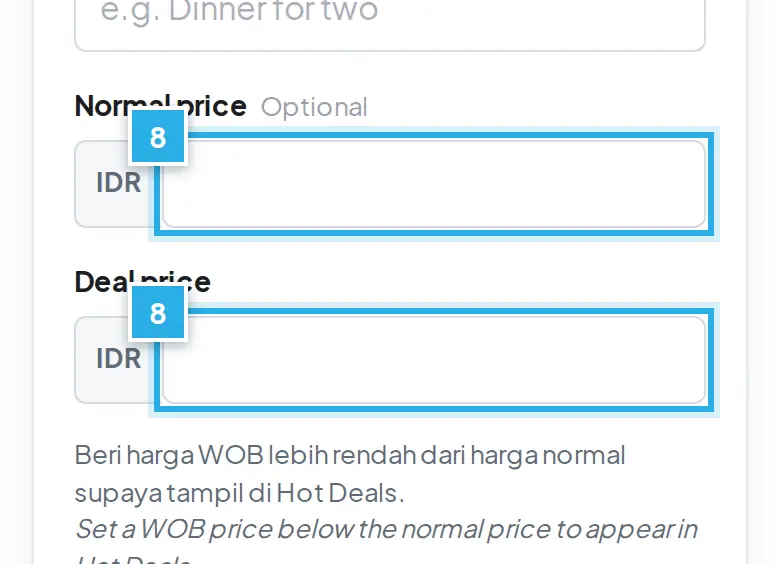
Isi satu baris per paket. Treatment name (contoh "Balinese Massage, 60 minutes"). Harga normal di venue / Normal price at the venue (IDR) adalah harga normal Anda. Selama Hot Deal berjalan, harga yang dibayar tamu tetap seperti yang diatur tim; jika Anda mengubah harga normal, tim What's On Bali memeriksanya.
Fill in one row per package. Treatment name (e.g. "Balinese Massage, 60 minutes"). Normal price at the venue (IDR) is your normal price. While a Hot Deal runs, the price guests pay stays as the team set it; if you change the normal price, the What's On Bali team checks it.
4
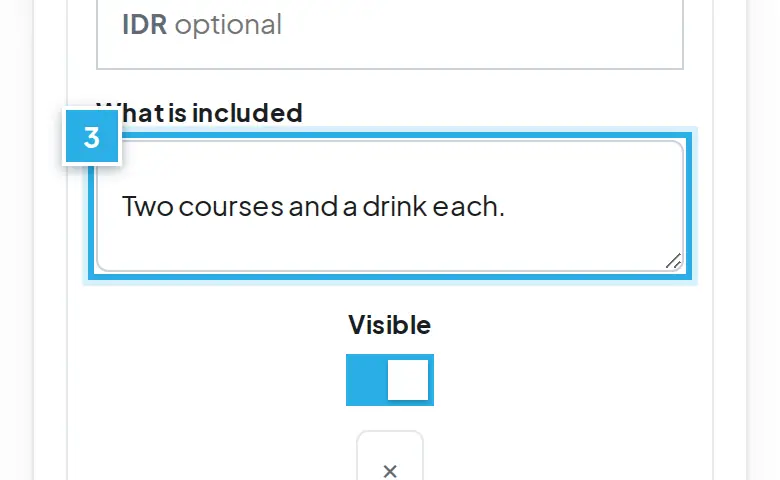
What is included: satu poin per baris, contoh Foot bath 5 minutes, Traditional massage 85 minutes, Welcome drink.
What is included: one point per line, e.g. Foot bath 5 minutes, Traditional massage 85 minutes, Welcome drink.
5
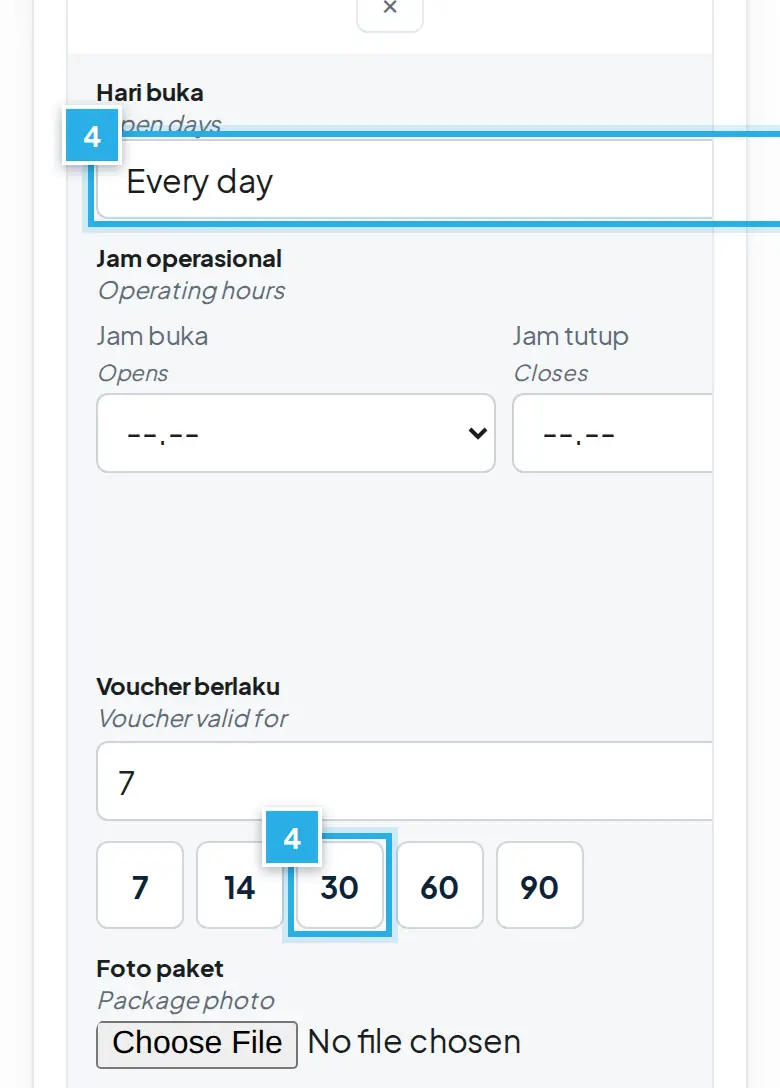
Di bawah tiap paket: Hari buka / Open days (Every day, Weekdays (Mon-Fri), Weekend (Sat-Sun) atau Specific days), Jam operasional / Operating hours (format 18.00-21.00) dan Voucher berlaku / Voucher valid for dalam hari: pilih 7, 14, 30, 60 atau 90, atau ketik angka 7 sampai 365. Standarnya 7.
Under each package: Open days (Every day, Weekdays (Mon-Fri), Weekend (Sat-Sun) or Specific days), Operating hours (format 18.00-21.00) and Voucher valid for in days: press 7, 14, 30, 60 or 90, or type a number from 7 to 365. The default is 7.
6
Foto paket / Package photo (opsional): ukuran ideal 1200 x 900 px (4:3), JPG, PNG atau WebP, maksimal 12 MB. Tanpa foto paket, tampil foto cover atau ikon kategori.
Package photo (optional): ideal size 1200 x 900 px (4:3), JPG, PNG or WebP, up to 12 MB. Without a package photo, the cover photo or a category icon is shown.
7
Tekan + Add another treatment untuk paket lain, lalu Save treatments dan konfirmasi. Perubahan langsung tampil di halaman publik.
Press + Add another treatment for another package, then Save treatments and confirm. Changes show on the public page right away.
Paket BARU disimpan tersembunyi sampai tim What's On Bali menyetujui harganya. Anda menerima email Harga disetujui saat selesai. Harga IDR 0 tetap tersembunyi.
A NEW package is saved hidden until the What's On Bali team approves its price. You get a Price approved email when done. A price of IDR 0 stays hidden.
Hot Deals diatur oleh tim What's On BaliHot Deals are set by the What's On Bali team
1
Hanya tim What's On Bali yang membuat, mengubah atau menghapus diskon Hot Deal. Anda tidak perlu mengisi diskon.
Only the What's On Bali team makes, changes or removes a Hot Deal discount. You do not need to fill in a discount.
2
Diskon Hot Deal selalu diambil dari margin What's On Bali: pencairan dana Anda sesuai perjanjian tidak berubah.
A Hot Deal discount always comes out of the What's On Bali margin: your payout under the agreement does not change.
Mengubah, menjeda dan menghapus paketEditing, pausing and deleting a package
1
Ubah: buka Manage lagi, ubah barisnya, tekan Save treatments. Perubahan pada paket yang sudah ada langsung berlaku untuk pemesanan berikutnya. Tamu yang sudah memesan tetap memakai harga dan paket yang mereka beli.
Edit: open Manage again, change the row, press Save treatments. Changes to an existing package apply to new bookings straight away. Guests who already booked keep the price and package they bought.
2
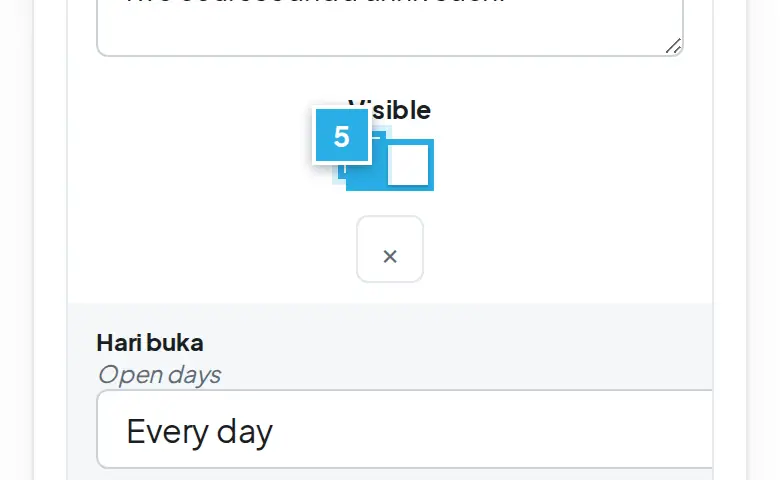
Jeda: matikan tombol Visible pada paket. Paket disembunyikan dari tamu, tidak dihapus.
Pause: switch off the Visible toggle on the package. It is hidden from guests, not deleted.
3
Hapus: tekan tombol x (Remove), konfirmasi, lalu Save treatments. Paket yang sudah pernah terjual atau sedang ditahan hanya disembunyikan agar pesanan lama tetap ada. Voucher yang sudah terjual tetap berlaku.
Delete: press the x button (Remove), confirm, then Save treatments. A package that already sold or is on hold is only hidden so old orders stay intact. Vouchers already sold stay valid.
Aturan voucher dan pemesananVoucher and booking rules
1
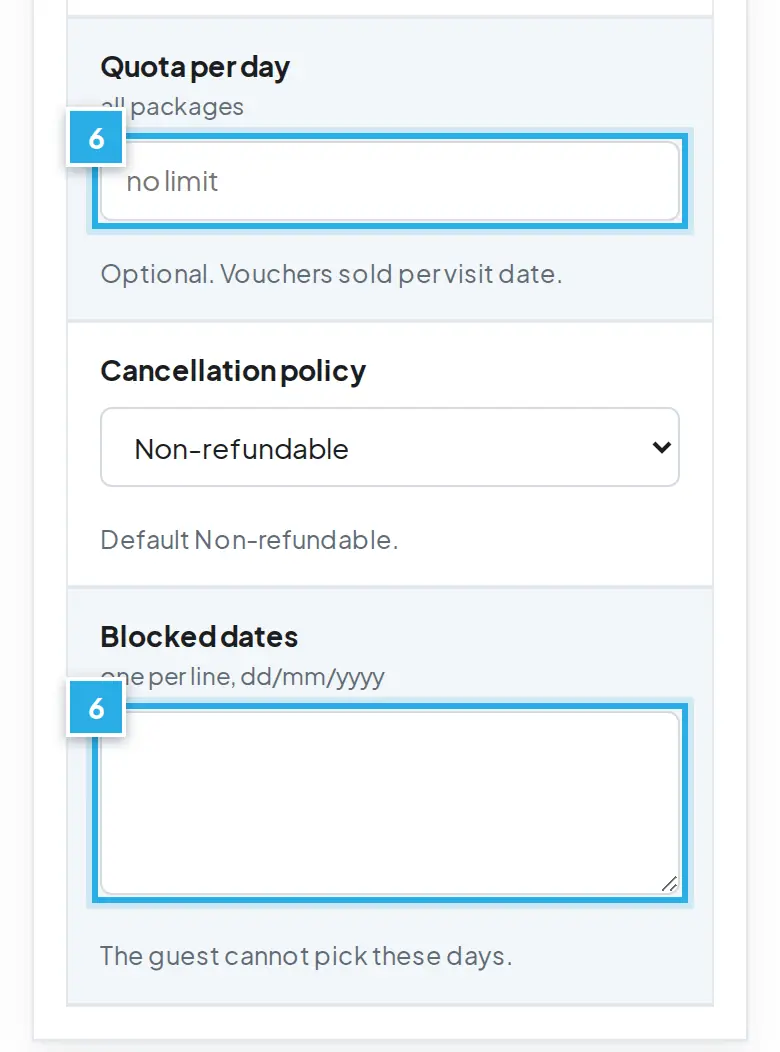
Kartu 2. Voucher and booking di halaman yang sama berisi: Voucher valid for (1 sampai 365 hari), Earliest booking (1 sampai 30 hari dari hari ini, standar 1 = besok), Bookable days ahead (1 sampai 365, standar 60) dan Quota per day (kosong = tanpa batas).
The 2. Voucher and booking card on the same page holds: Voucher valid for (1 to 365 days), Earliest booking (1 to 30 days from today, default 1 = tomorrow), Bookable days ahead (1 to 365, default 60) and Quota per day (empty = no limit).
2
Cancellation policy: Non-refundable, Free cancellation 24 h, 48 h atau 7 days.
Cancellation policy: Non-refundable, Free cancellation 24 h, 48 h or 7 days.
3
Blocked dates: satu tanggal per baris (dd/mm/yyyy). Tamu tidak bisa memilih tanggal itu, cocok untuk hari raya, Nyepi atau tutup khusus.
Blocked dates: one date per line (dd/mm/yyyy). Guests cannot pick those days, useful for holidays, Nyepi or special closures.
Hot Deals diatur oleh tim What's On Bali: tim memilih paket, diskon dan periodenya. Diskon diambil dari margin What's On Bali, pencairan dana Anda tidak berubah. Penawaran tanpa diskon tetap bisa dipesan dari halaman venue.
Hot Deals are set by the What's On Bali team: the team chooses the packages, the discount and the period. The discount comes out of the What's On Bali margin, your payout does not change. Offers without a discount can still be booked from the venue page.
Membuat Hot DealCreating a Hot Deal
1
Buka Hot Deals, lalu Create a Hot Deal (atau Edit pada deal yang ada).
Open Hot Deals, then Create a Hot Deal (or Edit on an existing deal).
2
The basics:Deal title* (maksimal 120 karakter), Category, Area, Description. Tambahkan satu foto cover.
The basics:Deal title* (max 120 characters), Category, Area, Description. Add one cover photo.
3
Offer & price: pilih Promo at the venue (misalnya happy hour atau 2 for 1, tidak ada yang dibeli) atau Link to my booking page. Paket dan voucher yang dibayar online dijual lewat listing Anda di Treatments.
Offer & price: choose Promo at the venue (e.g. happy hour or 2 for 1, nothing to buy) or Link to my booking page. Packages and vouchers paid online are sold on your listing under Treatments.
4
Untuk voucher: Voucher name, Harga normal di venue / Normal price at the venue, Price is for, Vouchers available (kosong = tanpa batas) dan Max per order. Diskon diatur oleh tim What's On Bali.
For vouchers: Voucher name, Normal price at the venue, Price is for, Vouchers available (empty = unlimited) and Max per order. The discount is set by the What's On Bali team.
5
Validity & terms:Valid from, Valid until, What's included, Terms & conditions dan How to redeem (satu langkah per baris).
Validity & terms:Valid from, Valid until, What's included, Terms & conditions and How to redeem (one step per line).
6
Simpan dengan Submit for review. Aturan peninjauan sama seperti listing (lihat bagian Mengisi Listing Venue).
Di daftar Anda, deal menampilkan label In Hot Deals atau Not in Hot Deals (No discount). Deal yang Valid until-nya sudah lewat otomatis menjadi draf dan Anda bisa mengubah tanggalnya lalu mengirim ulang.
In your list, a deal shows the label In Hot Deals or Not in Hot Deals (No discount). A deal whose Valid until date has passed automatically becomes a draft, and you can change the date and submit it again.
Mengajukan Hot DealRequesting a Hot Deal
1
Buka Treatments, pilih listing Anda, lalu tekan Ajukan Hot Deal / Request a Hot Deal di bawah kotak paket.
Open Treatments, pick your listing, then press Ajukan Hot Deal / Request a Hot Deal under the package box.
2
Pilih paket, lalu isi kontribusi diskon dari Anda dalam % dari harga normal atau IDR per voucher. Di samping setiap paket tampil pencairan dana baru untuk Anda, misalnya "Pencairan dana untuk Anda: IDR 1.443.000 per voucher (sebelumnya IDR 1.535.500)".
Choose the packages, then fill in your discount contribution as % of the normal price or IDR per voucher. Next to each package you see your new payout, for example "Your payout: IDR 1.443.000 per voucher (before IDR 1.535.500)".
3
Isi periode yang diinginkan (dari dan sampai), kuota voucher (opsional) dan catatan, centang persetujuan pencairan dana, lalu tekan Kirim permintaan. Persetujuan dicatat dengan tanggal, jam, akun dan alamat IP Anda.
Fill in the preferred period (from and until), the voucher quota (optional) and a note, tick the payout consent, then press Send request. The consent is recorded with the date, time, your account and IP address.
4
Status menjadi Hot Deal diajukan. Tim What's On Bali memutuskan diskon akhir: kontribusi Anda ditambah, jika tim mau, diskon tambahan dari margin What's On Bali. Anda menerima email saat permintaan diterima, disetujui, diubah atau ditolak.
The status becomes Hot Deal requested. The What's On Bali team decides the final discount: your contribution plus, if the team wants, an extra discount from the What's On Bali margin. You get an email when the request is received, approved, changed or declined.
5
Jika tim mengubah kontribusi Anda, status menjadi Perlu konfirmasi Anda: buka lagi halaman yang sama, periksa angkanya, centang persetujuan dan tekan Konfirmasi. Anda juga bisa Batalkan permintaan.
If the team changes your contribution, the status becomes Needs partner confirmation: open the same page again, check the numbers, tick the consent and press Confirm. You can also Withdraw request.
6
Setelah disetujui, Hot Deal berjalan hanya selama periode yang disepakati dan dicatat sebagai addendum perjanjian Anda. Setelah periode selesai, harga dan pencairan dana kembali normal secara otomatis.
Once approved, the Hot Deal runs only for the agreed period and is recorded as an addendum to your agreement. After the period, prices and payouts return to normal automatically.
Tanpa permintaan dari Anda, Hot Deal What's On Bali selalu dibiayai dari margin What's On Bali: pencairan dana Anda tidak pernah berubah tanpa permintaan dan persetujuan Anda sendiri.
Without your request, a What's On Bali Hot Deal is always funded from the What's On Bali margin: your payout never changes without your own request and consent.
Tambah AcaraAdd an Event
Buat acara, jual tiket di What's On Bali atau pakai link tiket Anda.Create an event and sell tickets on What's On Bali or use your own ticket link.
1
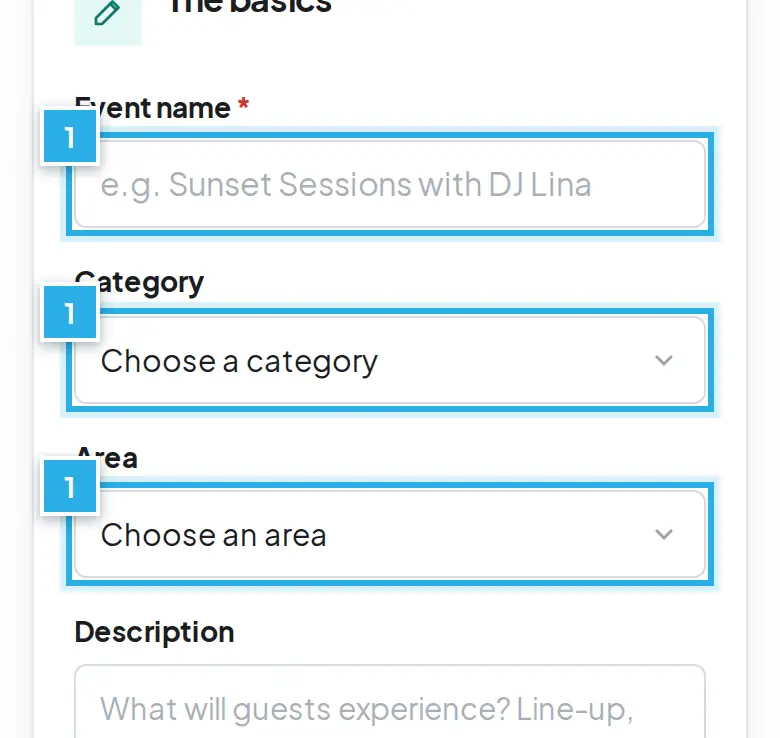
Buka Events, tekan Create an event, isi nama.Open Events, press Create an event, fill in the name.
2
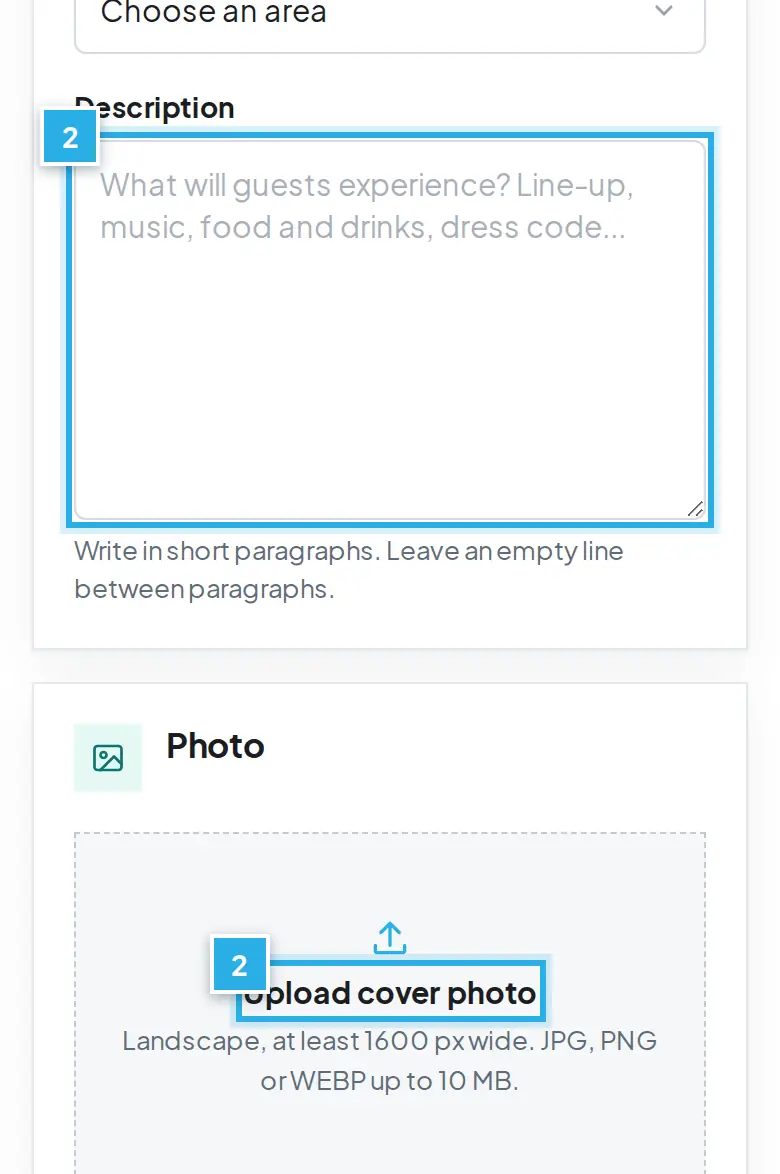
Tulis deskripsi dan unggah foto cover.Write the description and upload a cover photo.
3
Pilih tanggal, jam mulai dan jam selesai.Choose the date, start time and end time.
4
Pilih venue Anda atau isi link Google Maps.Pick your venue or fill in the Google Maps link.
5
Atur tiket: nama, harga IDR dan jumlah.Set up tickets: name, price in IDR and quantity.
6
Tekan Submit for review atau Save as draft.Press Submit for review or Save as draft.
Buka Events, lalu Create an event (atau Edit pada acara yang ada).
Open Events, then Create an event (or Edit on an existing event).
2
The basics:Event name* (maksimal 120 karakter), Category, Area, Description (paragraf pendek, beri baris kosong antar paragraf). Tambahkan satu foto cover.
The basics:Event name* (max 120 characters), Category, Area, Description (short paragraphs, leave an empty line between them). Add one cover photo.
3
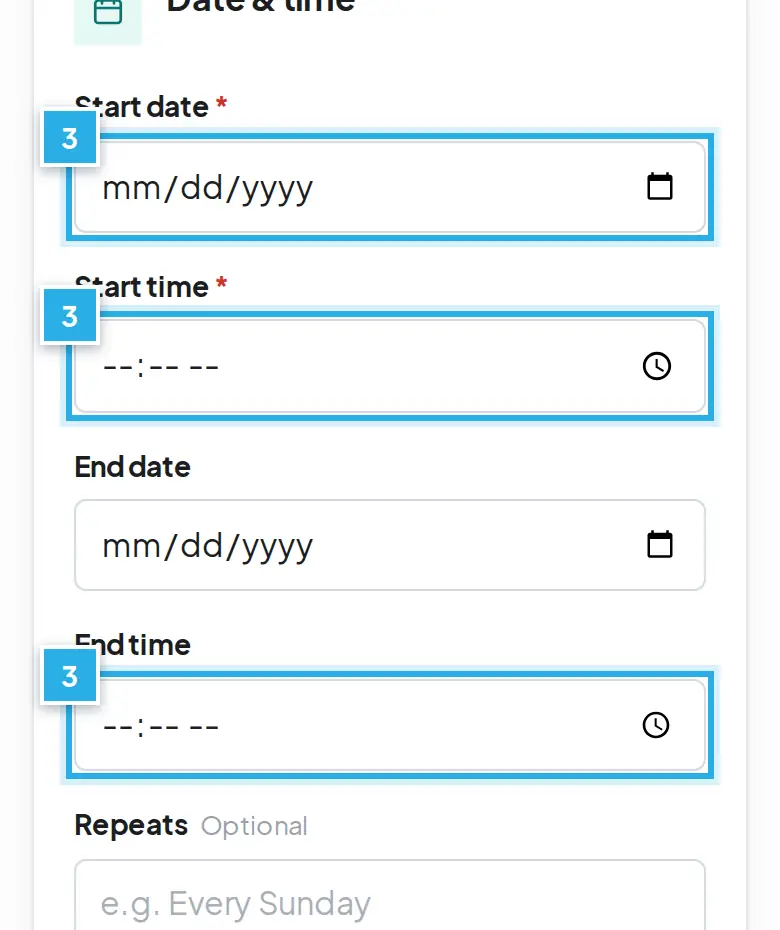
Date & time:Start date*, Start time*, End date, End time. Jam selesai sebelum jam mulai di hari yang sama dianggap hari berikutnya. Repeats hanya jika acara berulang, contoh "Every Sunday".
Date & time:Start date*, Start time*, End date, End time. An end time before the start time on the same day counts as the next day. Repeats only if the event repeats, e.g. "Every Sunday".
4
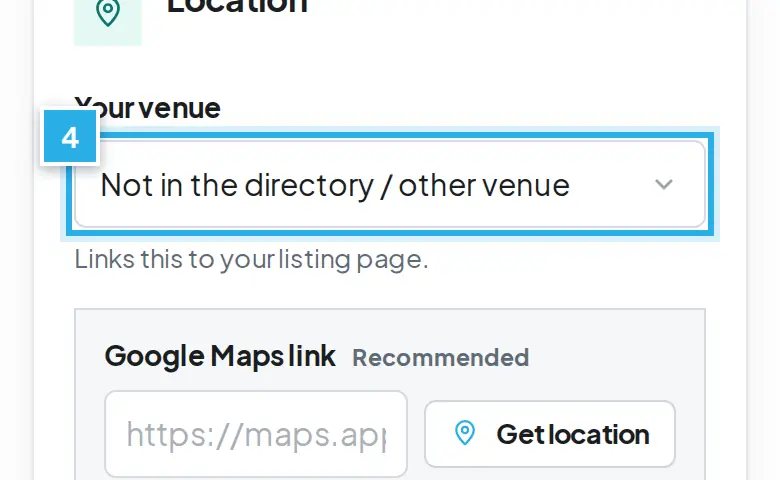
Location:Your venue (pilih listing Anda), tempel Google Maps link, Venue name dan Address.
Location:Your venue (pick your listing), paste the Google Maps link, Venue name and Address.
5
Tickets: pilih Sell on What's On Bali (e-tiket QR, check-in dan laporan penjualan), Link to my ticket page (isi Ticket link) atau Free or pay at the door (isi Price / entry note).
Tickets: choose Sell on What's On Bali (QR e-tickets, door check-in and sales reports), Link to my ticket page (fill in Ticket link) or Free or pay at the door (fill in Price / entry note).
6
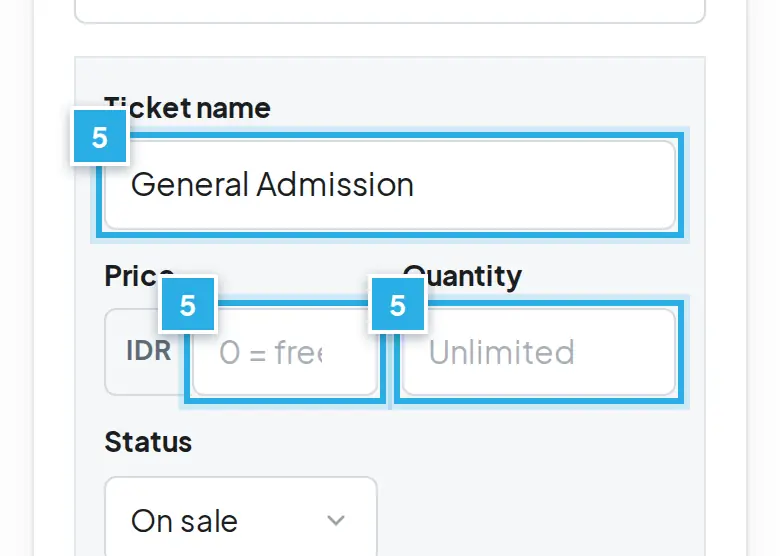
Untuk tiket yang dijual: isi Ticket name, Price (IDR; untuk tiket gratis centang Free ticket; tanpa harga dan tanpa centang, baris tidak disimpan), Quantity (kosong = tanpa batas), Status (On sale atau Paused), Description dan Max per order. Tambah jenis tiket dengan Add ticket type.
For tickets you sell: fill in Ticket name, Price (IDR; for a free ticket tick Free ticket; a row without a price and without the tick is not saved), Quantity (empty = unlimited), Status (On sale or Paused), Description and Max per order. Add more kinds with Add ticket type.
7
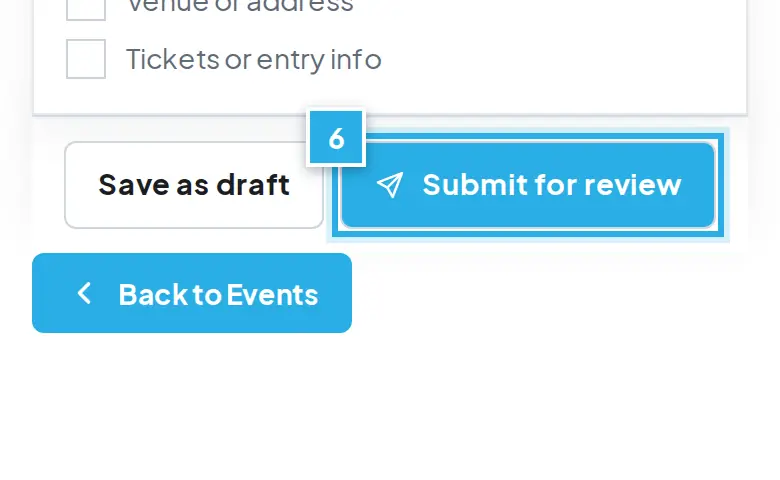
Good to know:Highlights dan Event policies (satu per baris, dicetak di tiket). Lalu Submit for review.
Good to know:Highlights and Event policies (one per line, printed on the ticket). Then Submit for review.
Mengubah tiket dan setelah acaraChanging tickets and after the event
1
Jenis tiket yang sudah terjual tidak bisa dihapus. Ubah Status-nya menjadi Paused. Jenis tiket yang belum terjual bisa dihapus dengan ikon tempat sampah (Remove). Minimal satu jenis tiket harus tersisa.
A ticket type that has sales cannot be removed. Set its Status to Paused. An unsold ticket type can be removed with the trash icon (Remove). At least one ticket type must stay.
2
Jenis tiket baru dari mitra disimpan tersembunyi sampai tim menyetujui harganya.
A new ticket type from a partner is saved hidden until the team approves its price.
3
Setelah jam selesai lewat, acara otomatis menjadi draf dan halaman publiknya diarahkan ke halaman Events. Tanpa jam selesai, batasnya 24 jam setelah mulai. Acara mingguan "Every ..." tetap tayang dan pindah ke minggu berikutnya.
Once the end time has passed, the event automatically becomes a draft and its public page redirects to the Events page. With no end time, the cut-off is 24 hours after the start. Weekly "Every ..." events stay live and roll to the next week.
4
Status acara yang sudah lewat tampil sebagai Ended. Anda bisa membuka draf, mengubah tanggalnya, lalu mengirim ulang.
A finished event shows the status Ended. You can open the draft, change the dates and submit it again.
Cek Pemesanan dan VoucherCheck Bookings and Vouchers
Lihat setiap tiket dan voucher yang terjual, lalu cek tamu di hari kedatangan.See every ticket and voucher sold, then check guests in on the day.
1
Buka Bookings untuk melihat semua penjualan.Open Bookings to see all sales.
2
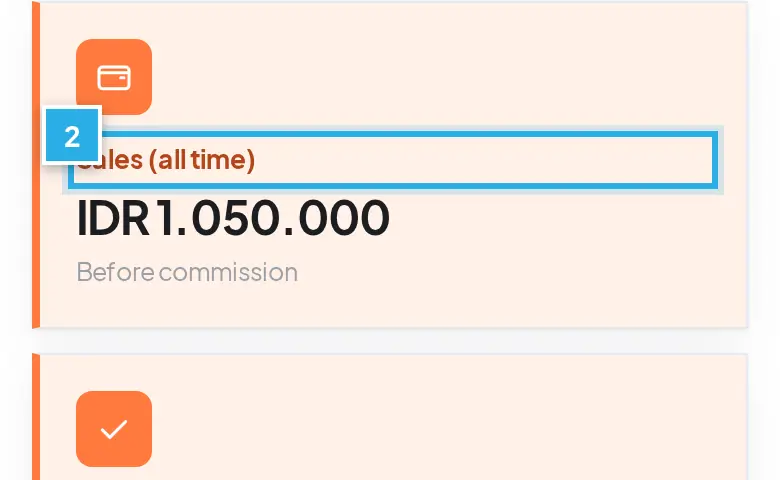
Lihat Sold, Sales (all time) dan Checked in.See Sold, Sales (all time) and Checked in.
3
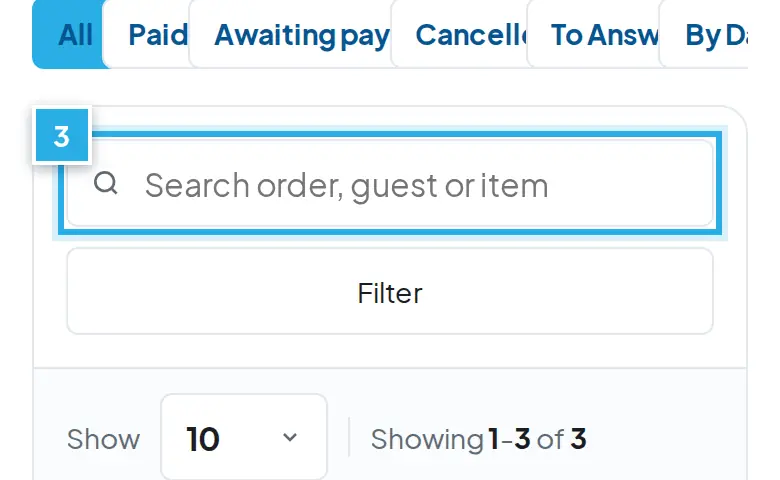
Cari nomor order, nama tamu atau item.Search by order number, guest name or item.
4
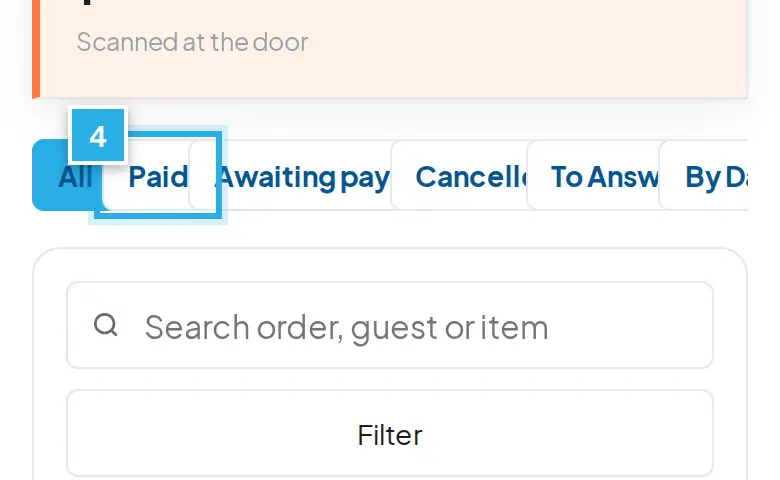
Saring dengan Paid, Awaiting payment atau To Answer.Filter with Paid, Awaiting payment or To Answer.
5
Balas reservasi berjam dari link di email pemesanan.Answer timed bookings from the link in the booking email.
6
Di hari kedatangan, staf memindai QR di Check-in.On the day, staff scan the QR on Check-in.
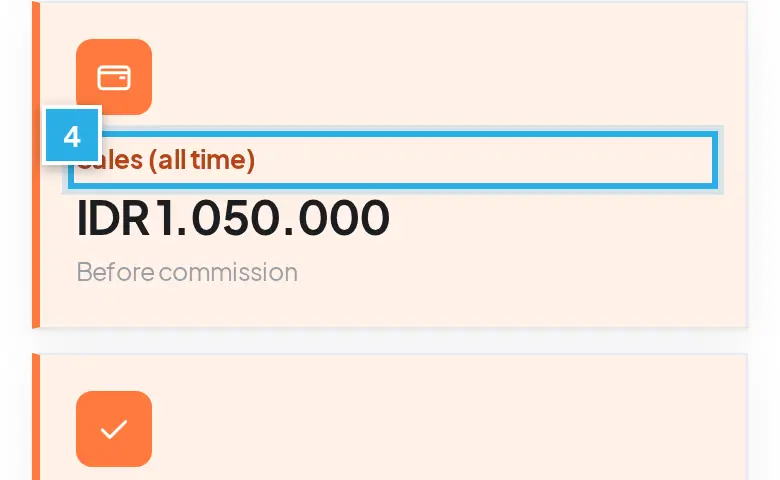
Buka Bookings. Di atas ada angka Sold (all time), Sales (all time) (sebelum komisi) dan Checked in.
Open Bookings. At the top are Sold (all time), Sales (all time) (before commission) and Checked in.
2
Tab: All, Paid, Awaiting payment, Cancelled, To Answer dan By Day. Cari dengan kolom Search order, guest or item.
Tabs: All, Paid, Awaiting payment, Cancelled, To Answer and By Day. Search with Search order, guest or item.
3
Tabel berisi Order, Item, Guest, Qty, Amount, Booking dan Status (Awaiting Confirmation, Pending Payment, Paid, Cancelled, Refunded, Expired). Tab By Day menampilkan kartu per tanggal.
The table has Order, Item, Guest, Qty, Amount, Booking and Status (Awaiting Confirmation, Pending Payment, Paid, Cancelled, Refunded, Expired). The By Day tab shows a card per date.
4
Di bawah Amount tampil Payout: jumlah yang Anda terima untuk baris itu sesuai perjanjian. Jika What's On Bali memberi diskon dari margin WOB, pencairan Anda tidak berubah. Di editor paket, kolom harga yang boleh diubah bergaris biru dan Partner menerima tampil abu-abu.
Under Amount you see Payout: what you receive for that line under your agreement. When What's On Bali gives a discount out of its own margin, your payout does not change. In the package editor the price fields you may change have a blue border and Partner receives is shown in grey.
Menjawab pemesanan dengan jamAnswering bookings with a time
1
Jika tamu meminta jam tertentu, Anda menerima email New booking to confirm setelah tamu membayar. Tekan Confirm, Suggest another time atau Decline di email atau di kolom Booking pada daftar pemesanan. Link di email tidak memerlukan login.
When a guest asks for a specific time, you receive the email New booking to confirm after the guest pays. Press Confirm, Suggest another time or Decline in the email or in the Booking column of the list. The links in the email need no login.
2
Jawab sebelum batas waktu yang tertulis. Pengingat dikirim di tengah waktu dan di batas waktu.
Answer before the deadline shown. Reminders are sent halfway and at the deadline.
3
Pemesanan voucher Hot Deal dengan jendela tanggal tidak perlu konfirmasi. Anda hanya menerima email New voucher dan melihat permintaan khusus atau pesan hadiah tamu.
Hot Deal voucher bookings with a visit window need no confirmation. You only receive the New voucher email and see the guest's special request or gift message.
4
Jika Anda Decline, tamu mendapat pengembalian dana penuh atas biaya mitra, dipotong dari pembayaran berikutnya (Pasal 4 perjanjian). Lebih baik pilih Suggest another time.
If you Decline, the guest gets a full refund at the partner's cost, deducted from the next payout (Article 4 of the agreement). Better to choose Suggest another time.
Voucher dan tiket di hari kedatanganVouchers and tickets on the day
1
Tamu menunjukkan voucher atau tiket dengan kode QR di HP ("Show this QR code at the venue. Each voucher can be used once"). Screenshot juga boleh.
The guest shows the voucher or ticket with a QR code on their phone ("Show this QR code at the venue. Each voucher can be used once"). A screenshot is fine.
2
Pemindaian dilakukan di halaman Check-in oleh akun Check-in Staff yang dibuat tim What's On Bali (akun mitra biasa tidak bisa memindai). Minta akun staf dari tim lewat tombol bantuan di bawah.
Scanning is done on the Check-in page by a Check-in Staff account created by the What's On Bali team (a normal partner account cannot scan). Ask the team for a staff account with the help buttons below.
3
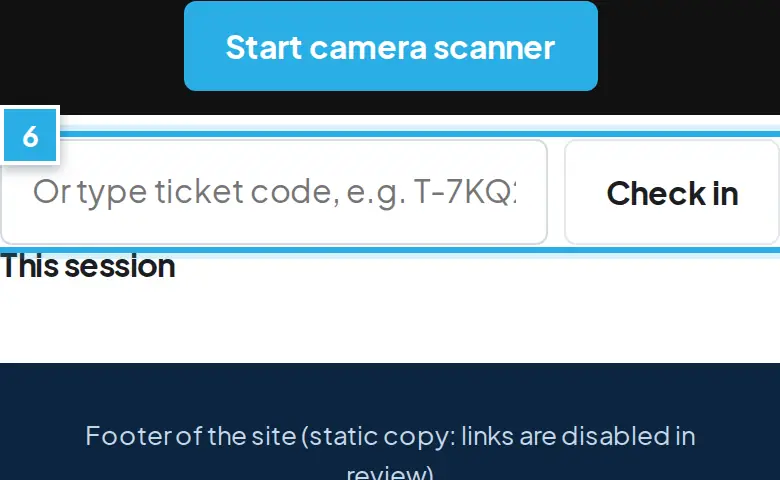
Di halaman itu, tekan Start camera scanner atau ketik kode tiket lalu Check in. Hasil: VALID: let them in (hijau), ALREADY USED, INVALID, Expired, NOT VALID TODAY, CANCELLED atau REFUNDED. Satu tiket hanya bisa dipakai sekali.
On that page, press Start camera scanner or type the ticket code then Check in. Results: VALID: let them in, ALREADY USED, INVALID, Expired, NOT VALID TODAY, CANCELLED or REFUNDED. A ticket can only be used once.
4
Jumlah tamu yang sudah check-in tampil di Bookings pada angka Checked in.
The number of guests checked in shows in Bookings under Checked in.
Jika ada masalah dengan tamuIf a guest has a problem
1
Pembayaran, pembatalan dan pengembalian dana ditangani tim What's On Bali. Hubungi tim lewat WhatsApp atau email di bagian Butuh bantuan? dengan nomor order.
Payments, cancellations and refunds are handled by the What's On Bali team. Contact the team by WhatsApp or email in Need help? with the order number.
2
Jika Anda tidak bisa melayani pemesanan yang sudah dibayar (penuh, cuaca, peralatan rusak), beri tahu tim dan tamu secepatnya dan tawarkan tanggal baru. Jika tamu menolak, tamu mendapat pengembalian dana penuh atas biaya mitra (Pasal 4 perjanjian).
If you cannot serve a paid booking (fully booked, weather, equipment failure), tell the team and the guest as soon as possible and offer a new date. If the guest declines, the guest receives a full refund at the partner's cost (Article 4 of the agreement).
Pencairan DanaPayouts
Uang dari penjualan voucher, paket dan tiket Anda di What's On Bali, setelah dikurangi komisi, kami transfer ke rekening Anda.Money from your vouchers, packages and tickets sold on What's On Bali, minus commission, is transferred to your bank account.
1
Uang penjualan Anda, dikurangi komisi, kami transfer ke rekening Anda.Your sales money, minus commission, is transferred to your bank account.
2
Rekening bank diisi di perjanjian online, bagian Rekening bank.Your bank account is entered in the online agreement, under Bank account.
3
Nama pemilik rekening harus sama dengan nama bisnis.The account holder name must match the business name.
4
Lihat Sales (all time) di Bookings, sebelum komisi.See Sales (all time) in Bookings, before commission.
5
Dana dicairkan sesuai jadwal Pasal 3, dengan laporan email.Payouts follow the Article 3 schedule, with a report by email.
Uang dari penjualan voucher, paket dan tiket Anda di What's On Bali, setelah dikurangi komisi, kami transfer ke rekening Anda.
Money from your vouchers, packages and tickets sold on What's On Bali, minus commission, is transferred to your bank account.
2
Tamu membayar ke What's On Bali. Bagian Anda adalah harga WOB dikurangi komisi yang Anda setujui di perjanjian (atau harga nett). Angka Sales (all time) di Bookings adalah sebelum komisi.
Guests pay What's On Bali. Your share is the WOB price minus the commission you agreed in the agreement (or the net rate). Sales (all time) in Bookings is before commission.
3
Rekening bank diisi di perjanjian online, bagian Rekening bank / Bank account, dan disimpan terenkripsi. Pembayaran dikirim dalam Rupiah ke rekening atas nama bisnis Anda. Untuk mengubah rekening, hubungi tim kemitraan.
Your bank account is entered in the online agreement, under Bank account, and stored encrypted. Payouts are sent in Rupiah to an account in your business name. To change the account, contact the partnerships team.
4
Jadwal sesuai Pasal 3 perjanjian: layanan tanggal 1 sampai 15 dibayar paling lambat tanggal 25 bulan yang sama; layanan tanggal 16 sampai akhir bulan dibayar paling lambat tanggal 10 bulan berikutnya; tiket acara dibayar dalam 5 hari kerja setelah acara.
Schedule as in Article 3 of the agreement: services from the 1st to the 15th are paid by the 25th of the same month; services from the 16th to the end of the month by the 10th of the next month; event tickets within 5 business days after the event.
5
Setiap pembayaran disertai laporan lewat email. Keberatan disampaikan dalam 7 hari setelah laporan diterima.
Each payout comes with a report by email. Raise any objection within 7 days of receiving it.
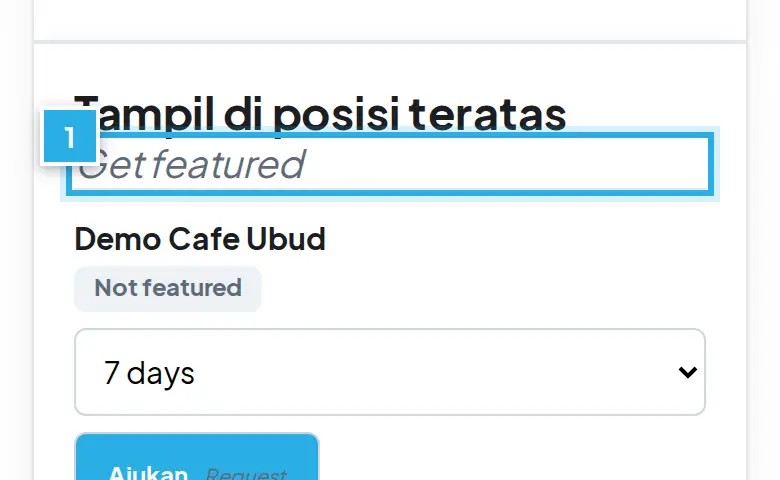
Tampil FeaturedGet Featured
Posisi Featured diatur oleh tim What's On Bali. Anda bisa mengajukan permintaan; tim kami akan menghubungi Anda untuk paket, harga dan jadwal.Featured placement is managed by the What's On Bali team. You can send a request; our team will contact you about the package, price and dates.
1
Di Overview, cari kartu Get featured.On Overview, find the Get featured card.
2
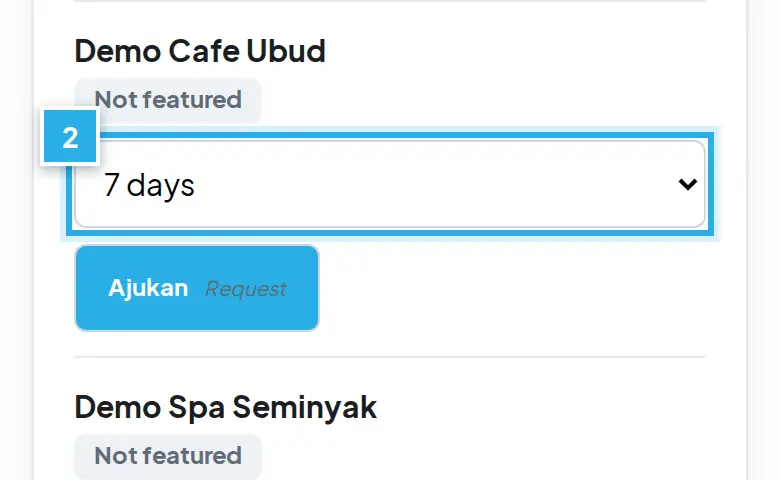
Lihat status item Anda: Tidak aktif atau Featured sampai tanggal.See your item's status: Not featured or Featured until a date.
3
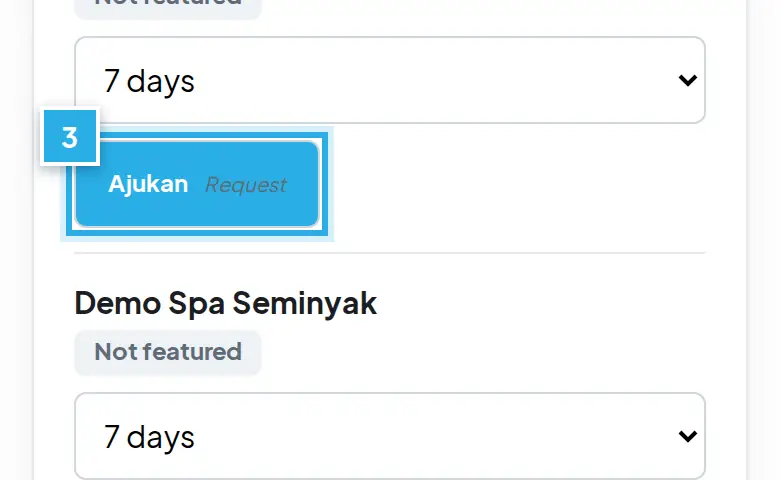
Tekan Ajukan Featured. Tim kami menghubungi Anda.Press Request Featured. Our team will contact you.
4
Selama tampil, lihat jumlah tampil dan klik di kartu ini.While featured, see the views and clicks on this card.
Posisi Featured diatur oleh tim What's On Bali. Anda bisa mengajukan permintaan; tim kami akan menghubungi Anda untuk paket, harga dan jadwal.
Featured placement is managed by the What's On Bali team. You can send a request; our team will contact you about the package, price and dates.
2
Di halaman Overview, cari kartu Tampil Featured / Get featured. Setiap item Anda (listing, deal, acara) ada di kartu ini dengan statusnya.
On the Overview page, find the Get featured card. Each of your items (listing, deal, event) is on this card with its status.
3
Tekan Ajukan Featured / Request Featured pada item yang ingin ditampilkan. Permintaan dikirim ke tim lewat email; tidak ada daftar harga dan tidak ada pembelian di dashboard.
Press Request Featured on the item you want shown. The request goes to the team by email; there is no price list and nothing is bought in the dashboard.
4
Muncul pesan Permintaan terkirim. Tim kami menghubungi Anda untuk paket, harga dan jadwal, lalu mengatur penempatannya.
The message Request sent appears. Our team contacts you about the package, price and dates, then sets up the placement.
Status dan laporanStatus and report
1
Status yang Anda lihat hanya yang ditetapkan tim: Tidak aktif / Not featured, Featured sampai dd/mm/yyyy / Featured until dd/mm/yyyy, atau Terjadwal / Scheduled.
You only see the status the team set: Not featured, Featured until dd/mm/yyyy or Scheduled.
2
Selama periode Featured, kartu yang sama menampilkan laporan jumlah tampil dan klik, dibandingkan dengan 30 hari sebelumnya.
During the featured period the same card shows the views and clicks report, compared with the 30 days before.
3
Item harus tayang: listing atau deal yang dipublikasikan, atau acara yang belum selesai. Setiap penempatan diberi label kecil Featured atau Sponsored di situs.
The item must be live: a published listing or deal, or an event that is not over. Every placement carries a small Featured or Sponsored label on the site.
4
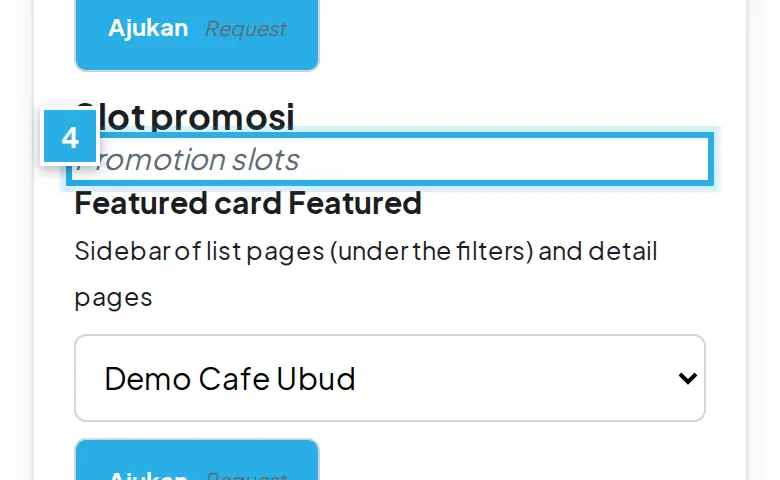
Slot promosi di kolom filter halaman daftar (kartu Featured dan banner setengah halaman) juga diatur oleh tim dengan cara yang sama; slot Anda yang aktif muncul di kartu ini dengan tanggalnya.
Promotion slots in the filter column of the list pages (the Featured card and the half page banner) are managed by the team the same way; your active slots appear on this card with their dates.
Beranda DashboardDashboard Home
Overview menunjukkan keadaan bisnis Anda dan apa yang perlu dilakukan.Overview shows how your business is doing and what to do next.
1
Menu kiri berisi Bookings, Treatments, Events, Hot Deals, Listings.The left menu holds Bookings, Treatments, Events, Hot Deals, Listings.
2
Kartu profil menunjukkan apa yang masih perlu diisi.The profile card shows what is still missing.
3
Lihat Needs your attention dulu, angka tampil paling atas.Look at Needs your attention first, numbers come first.
4
Pakai Create something new untuk acara atau Hot Deal.Use Create something new for an event or Hot Deal.
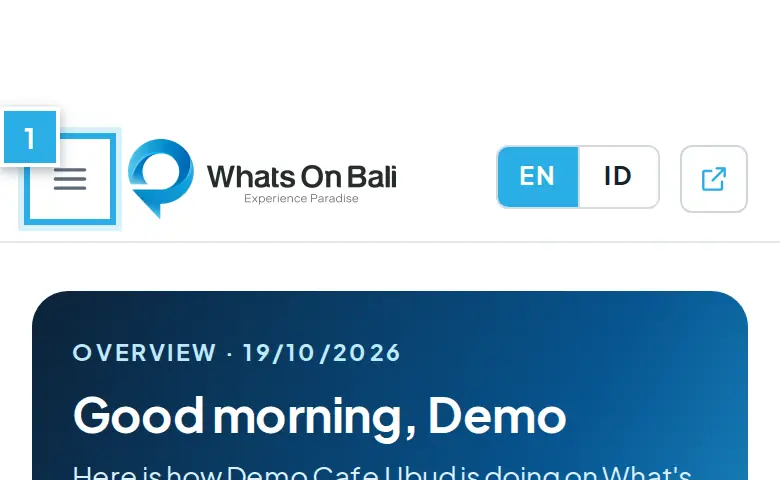
Di HP, buka menu dengan ikon garis tiga. Menu partner: Overview (Ringkasan); Bookings (Pemesanan) di grup Sales & Operations; Treatments (Perawatan), Events, Hot Deals dan Listings di grup Content; Business Profile (Profil Bisnis) di grup Team & Settings.
On a phone, open the menu with the three-line icon. Partner menu: Overview; Bookings in the Sales & Operations group; Treatments, Events, Hot Deals and Listings in the Content group; Business Profile in the Team & Settings group.
2
Di dasar menu ada kotak Need a hand? dengan tombol Email us (dan tombol WhatsApp jika tersedia), foto profil Anda (membuka My profile), dan ikon Log out.
At the bottom of the menu is the Need a hand? box with an Email us button (and a WhatsApp button when available), your profile photo (opens My profile) and the Log out icon.
3
Di bagian atas ada pilihan bahasa EN | ID dan link View website (Lihat situs).
At the top there is the EN | ID language switch and the View website link.
Halaman OverviewThe Overview page
1
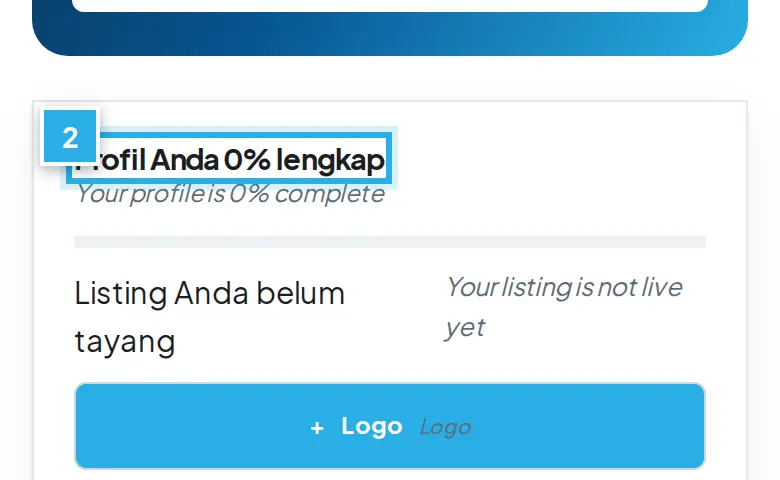
Profil Anda N% lengkap: kartu di bagian atas menghitung 6 hal: Logo, Foto usaha (minimal 4 foto), Jam buka, Instagram, Deskripsi usaha (minimal 80 karakter) dan Alamat dan peta. Yang belum lengkap tampil sebagai tombol +: tekan untuk langsung membukanya.
Your profile is N% complete: the card at the top counts 6 things: Logo, Business photos (at least 4 photos), Opening hours, Instagram, About your business (at least 80 characters) and Address and map. Anything missing shows as a + button: press it to open it directly.
2
Garis status menunjukkan Listing Anda tayang atau Listing Anda belum tayang. Saat tayang ada tombol Lihat / View.
The status line shows Your listing is live or Your listing is not live yet. When live there is a View button.
3
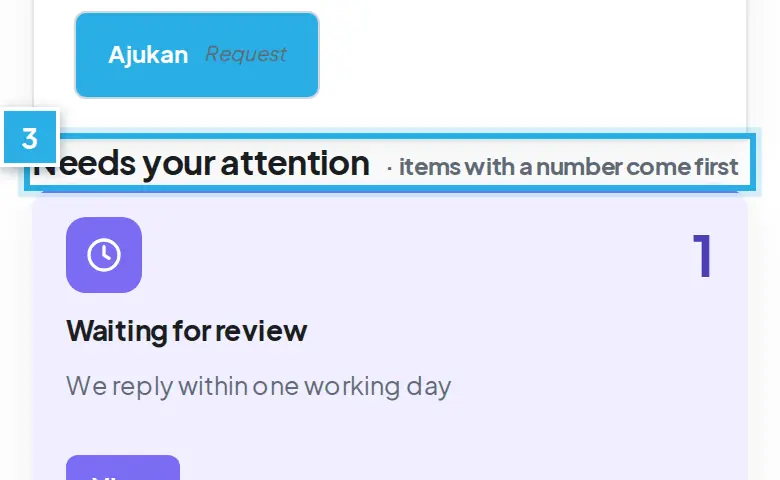
Needs your attention:Waiting for review (menunggu peninjauan), Drafts to finish (draf yang belum selesai) dan Bookings awaiting payment. Kartu dengan angka tampil lebih dulu.
Needs your attention:Waiting for review, Drafts to finish and Bookings awaiting payment. Cards with a number come first.
4
Your numbers:Tickets & vouchers sold, Sales, Live on the website dan In review (30 hari terakhir).
Your numbers:Tickets & vouchers sold, Sales, Live on the website and In review (last 30 days).
5
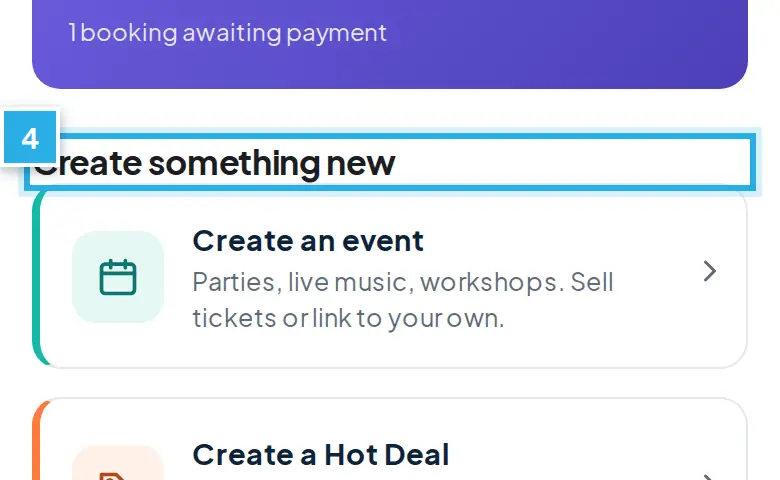
Create something new:Create an event, Create a Hot Deal dan Update your listing. Di bawahnya ada Upcoming events, To do dan Recent bookings.
Create something new:Create an event, Create a Hot Deal and Update your listing. Below are Upcoming events, To do and Recent bookings.
Jika akun Anda belum terhubung ke bisnis, dashboard menampilkan peringatan. Kirim email ke tim kemitraan dan kami akan menghubungkannya.
If your account is not linked to a business yet, the dashboard shows a warning. Email the partnerships team and we will connect it.
Pengaturan AkunAccount Settings
Ubah nama, foto dan kata sandi login Anda.Change your name, photo and login password.
1
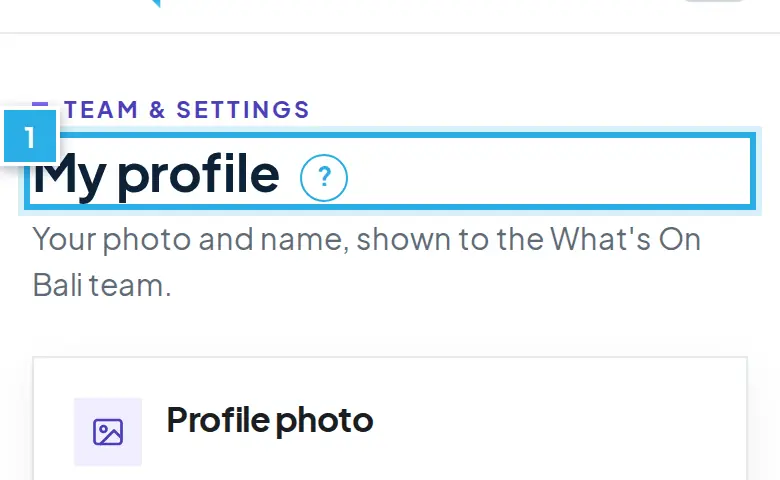
Buka My profile lewat nama Anda di menu.Open My profile through your name in the menu.
2
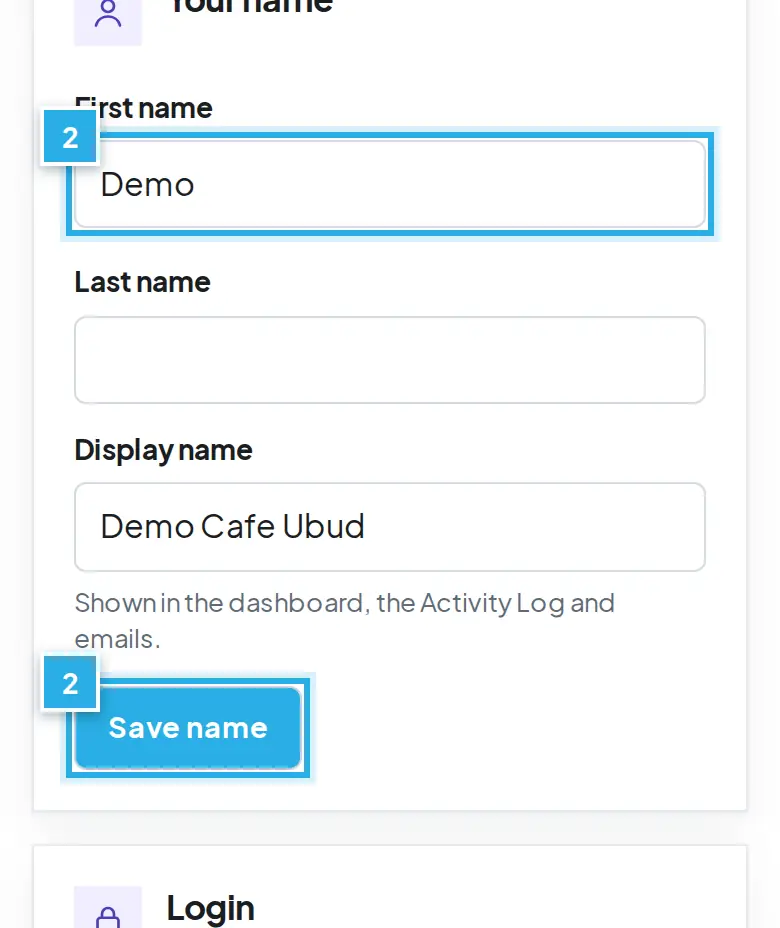
Isi nama depan dan belakang, lalu Save name.Fill in first and last name, then Save name.
3
Ganti kata sandi dengan Send me a reset link.Change your password with Send me a reset link.
Tekan foto profil Anda di dasar menu untuk membuka My profile.
Press your profile photo at the bottom of the menu to open My profile.
2
Profile photo: foto persegi (JPG, PNG atau WEBP, maksimal 5 MB). Your name: First name, Last name dan Display name (tampil di dashboard dan email), lalu Save name.
Profile photo: a square photo (JPG, PNG or WEBP, up to 5 MB). Your name: First name, Last name and Display name (shown in the dashboard and emails), then Save name.
3
Login menampilkan Username dan Email (hanya dibaca) dan tautan kata sandi baru: Send me a reset link.
Login shows Username and Email (read-only) and the new-password link: Send me a reset link.
4
Email kontak bisnis diubah di Business Profile (Business email). Itu bukan email login.
The business contact email is changed in Business Profile (Business email). It is not the login email.
5
Ganti bahasa dashboard dengan EN | ID di bagian atas. Keluar dengan ikon Log out.
Switch the dashboard language with EN | ID at the top. Log out with the Log out icon.
Tanya JawabFAQ
Kenapa listing saya belum tayang?Why is my listing not live yet?
Item baru ditinjau tim kami dulu (status In review); tim biasanya memeriksa dalam satu hari kerja dan mengirim email saat tayang. Jika statusnya Changes requested, baca catatan tim, perbaiki, lalu Submit for review lagi. Jika statusnya Draft, Anda belum menekan Submit for review. Kartu "Profil Anda N% lengkap" di Overview menunjukkan apa yang masih kurang.
New items are reviewed by our team first (status In review); the team usually checks within one working day and emails you when it is live. If the status is Changes requested, read the team note, fix it and press Submit for review again. If it says Draft, you have not pressed Submit for review yet. The "Your profile is N% complete" card on Overview shows what is still missing.
Kenapa penawaran saya tidak muncul di Hot Deals?Why is my offer not in Hot Deals?
Hot Deals diatur oleh tim What's On Bali: tim memilih penawaran dan diskonnya, dan diskon diambil dari margin What's On Bali. Tanpa diskon, penawaran tetap bisa dipesan dari halaman venue.
Hot Deals are set by the What's On Bali team: the team chooses the offers and the discount, and the discount comes out of the What's On Bali margin. Without a discount the offer can still be booked from the venue page.
Kenapa username saya berubah?Why did my username change?
Username akun mitra selalu memakai nama usaha Anda (misalnya gajahputihbali), bukan nama orang atau kata seperti reservation. Jika username diubah, Anda menerima email dengan username lama dan baru; password tidak berubah dan Anda diminta login ulang satu kali. Anda selalu bisa login dengan alamat email Anda. Jika penanggung jawab berganti, tim kami memindahkan login ke orang baru tanpa mengubah username.
The username of a partner account is always your business name (for example gajahputihbali), never a person's name or a word like reservation. If it changes you get an email with the old and the new username; your password stays and you log in again once. You can always log in with your email address. When the person in charge changes, our team hands the login over to the new person without changing the username.
Berapa lama peninjauan?How long does review take?
Pendaftaran: tim kami biasanya membalas dalam dua hari kerja. Listing, acara dan Hot Deal baru: tim memeriksa dalam satu hari kerja. Paket baru: disembunyikan sampai harganya disetujui tim. Untuk penandatanganan balik perjanjian, tidak ada batas waktu tertulis.
Applications: our team usually replies within two working days. New listings, events and Hot Deals: the team checks within one working day. New packages: hidden until the team approves the price. For countersigning the agreement there is no stated deadline.
Bagaimana cara mengubah harga?How do I change prices?
Buka Treatments, tekan Manage, ubah Harga normal di venue, lalu Save treatments. Perubahan pada paket yang ada langsung berlaku untuk pemesanan berikutnya; tamu yang sudah memesan tetap memakai harga lama. Selama Hot Deal berjalan, harga tamu tetap dan tim memeriksa harga normal baru Anda. Paket baru menunggu persetujuan harga dari tim.
Open Treatments, press Manage, change the Normal price at the venue, then Save treatments. Changes to existing packages apply to new bookings straight away; guests who already booked keep their old price. While a Hot Deal runs, the guest price stays and the team checks your new normal price. New packages wait for the team to approve the price.
Bagaimana mengubah jam buka untuk hari libur atau Nyepi?How do I change opening hours for a holiday or Nyepi?
Dashboard punya jam buka mingguan, belum ada kalender hari khusus. Untuk satu hari libur, tulis di Hours note pada listing, dan untuk paket yang dipesan lewat tanggal, isi Blocked dates di Treatments agar tamu tidak bisa memilih tanggal itu. Jam buka mingguan diubah di Listings, Opening hours.
The dashboard has weekly opening hours, there is no special-day calendar. For a single holiday, write it in Hours note on the listing, and for packages booked by date, fill in Blocked dates in Treatments so guests cannot pick that day. Weekly hours are changed in Listings, Opening hours.
Bisakah saya menjeda atau menghapus listing, acara atau Hot Deal?Can I pause or delete a listing, event or Hot Deal?
Di dashboard belum ada tombol jeda atau hapus untuk listing, acara dan Hot Deal. Hubungi tim bantuan dan kami akan melakukannya. Anda bisa menjeda satu jenis tiket acara (Status: Paused) dan menyembunyikan satu paket (Visible mati).
The dashboard has no pause or delete button for listings, events and Hot Deals. Contact the help team and we will do it for you. You can pause one event ticket type (Status: Paused) and hide one package (Visible off).
Bisakah saya menghapus akun saya?Can I delete my account?
Dashboard tidak punya tombol hapus akun. Hubungi tim kemitraan lewat WhatsApp atau email di bawah.
The dashboard has no delete-account button. Contact the partnerships team by WhatsApp or email below.
Siapa yang bisa melihat KTP saya?Who can see my KTP?
Hanya tim What's On Bali yang berwenang, tidak pernah publik. NIK dan rekening bank disimpan terenkripsi, foto KTP disimpan di folder pribadi di luar Media Library, dan setiap pembukaannya dicatat. PDF perjanjian hanya memuat 4 digit terakhir NIK dan tidak memuat foto KTP. KTP tidak dikirim lewat email.
Only authorised What's On Bali staff, never the public. The NIK and bank account are stored encrypted, the KTP photo is kept in a private folder outside the Media Library, and every view is logged. The agreement PDF shows only the last 4 digits of the NIK and never the KTP photo. The KTP is not sent by email.
Saya menghapus paket yang sudah terjual. Bagaimana nasib voucher tamu?I removed a package that already sold. What happens to the guests' vouchers?
Paket yang sudah terjual hanya disembunyikan, bukan dihapus. Pesanan dan voucher yang sudah terjual tetap ada dan tetap berlaku dengan harga dan paket yang dibeli tamu.
A package that already sold is only hidden, not deleted. Orders and vouchers already sold stay and remain valid with the price and package the guest bought.
Link perjanjian saya kedaluwarsa. Apa yang harus dilakukan?My agreement link expired. What do I do?
Minta link baru di halaman Get your private agreement link dengan email yang sama. Jawaban Anda tersimpan 30 hari setelah link berakhir. Atau WhatsApp tim kami dan kami kirim link baru.
Request a new link on the Get your private agreement link page with the same email. Your answers are kept for 30 days after expiry. Or WhatsApp our team and we send a new link.
Tamu minta mengganti jam atau tanggal. Bagaimana?A guest wants another time or date. What do I do?
Di email pemesanan atau kolom Booking tekan Suggest another time dan usulkan jam lain (sampai 3 kali). Jika tidak ada yang cocok, tekan Decline: tamu mendapat pengembalian dana penuh atas biaya mitra.
In the booking email or the Booking column press Suggest another time and propose another time (up to 3 times). If nothing fits, press Decline: the guest gets a full refund at the partner's cost.
Saya lupa kata sandi.I forgot my password.
Di halaman login tekan Lost your password? dan ikuti email yang dikirim. Lihat Masuk.
On the login page press Lost your password? and follow the email we send. See Logging in.
Butuh Bantuan?Need help?
Tim kemitraan kami siap membantu. Sebutkan nama bisnis dan, jika ada, nomor order Anda.
Our partnerships team is happy to help. Tell us your business name and, if you have one, your order number.